User guide
Edit spreadsheets. Build typed game data.
This guide covers the native table workspace, general spreadsheet editing and sample runtime integration. English is the default for new workspaces. Choose another language in Settings. Existing saved preferences are preserved.
Documentation ·01 · Quick start
Open Window → Design Data Table → Open Data Table. Select a bottom sheet tab. Click a cell, type a value, then press Enter. F2 edits the current value. Use the formula bar to inspect the original expression. Ctrl+S saves. File → New table creates an XLSX source with a unique integer Id column. Extension names are shown in sheet tabs.
02 · Source files and generated output
Keep XLSX and CSV sources together in Assets/DesignDataTable/Tables. Generated C# classes go to Generated/Code and new binary outputs to Generated/Binary under the same root. The TableManagement registry records each source and binary location. Existing samples can retain their registered binary locations. Save validates the table, writes the native source and regenerates typed runtime data. Do not edit generated C# files manually.
03 · Selection, copy and cut
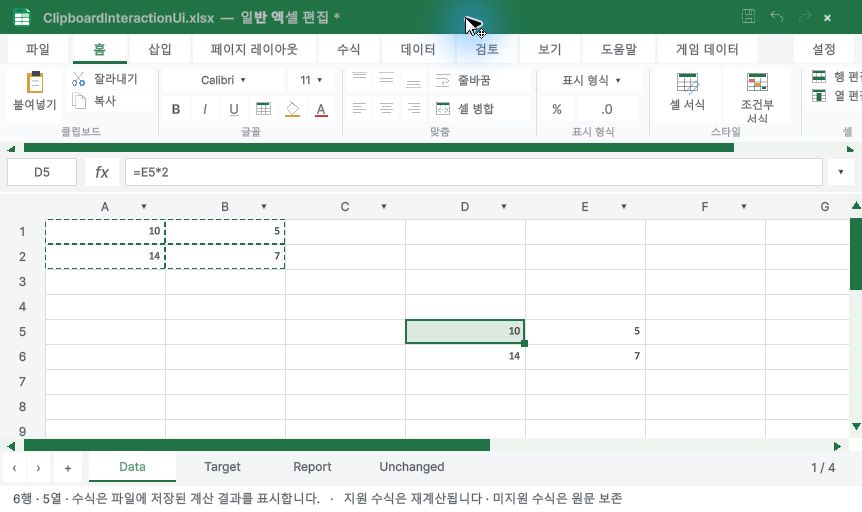
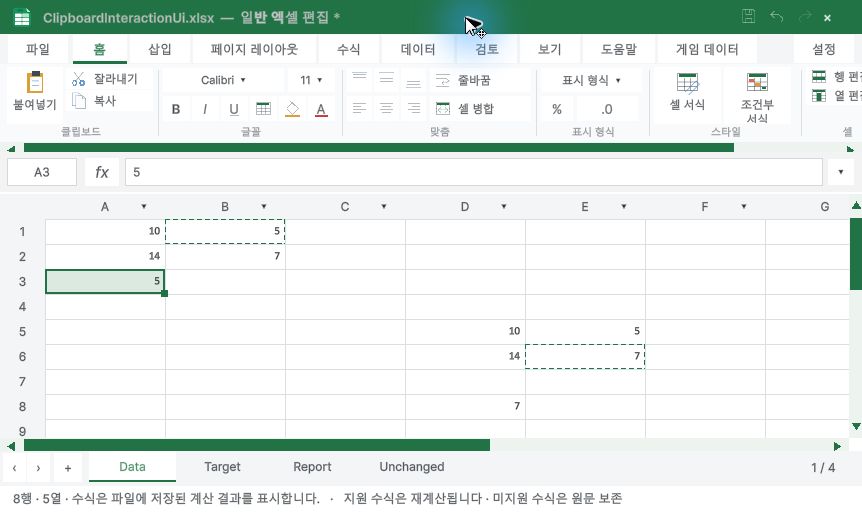
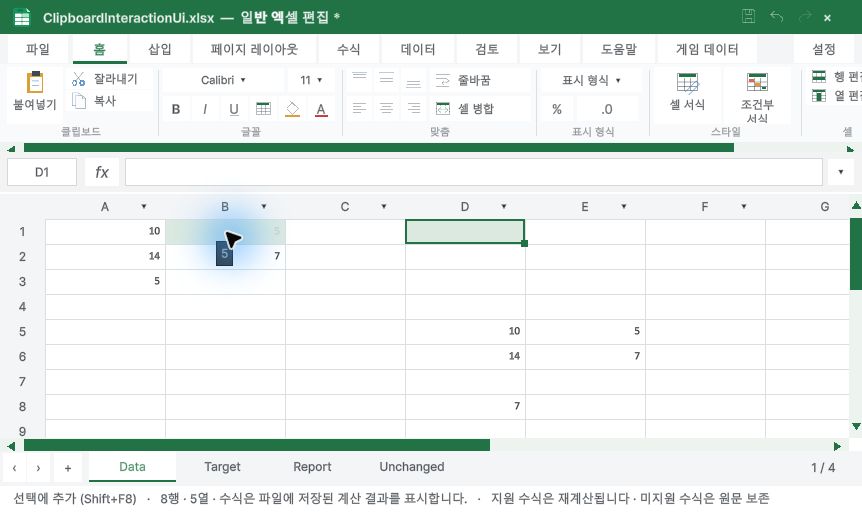
Drag a rectangle to select cells. Ctrl+click toggles separate cells, rows or columns. Ctrl+C copies; Ctrl+X marks a pending cut; Ctrl+V pastes at the active cell. Sparse selections preserve offsets and leave unselected destination positions untouched when pasted internally. External Excel TSV can be pasted into native tables. Cut clears the source only after a valid paste. Delete clears selected contents; numeric blanks remain visually empty and become typed defaults on export. Esc clears the animated copy/cut outline.
Ctrl+Alt+V or the cell context menu opens Paste Special. Ctrl+Shift+V pastes captured values. Transpose swaps rows and columns, including sparse offsets. Add/Subtract/Multiply/Divide write calculated values into numeric fields; they replace destination formulas with results. Skip blanks preserves destination contents. Any type, Id or arithmetic error rejects the entire change. Finish or cancel a pending cut before using Paste Special. A single copied cell fills a selected rectangle. A dense copied block repeats when the selection is an exact multiple of its size; sparse blocks cannot repeat.
04 · Navigation and batch entry
Tab and Shift+Tab move right and left; Enter and Shift+Enter move down and up. Arrows navigate, Shift extends selection, and Ctrl+arrows jump between data boundaries. Ctrl+Home goes to A1, Ctrl+End to the last data cell. Ctrl+Enter applies one entry to the selected range. Ctrl+Z undoes; Ctrl+Y or Ctrl+Shift+Z redoes. Native text editing owns clipboard shortcuts while a text field is active.
05 · Fill handle and series
Drag the bottom-right square of a rectangular selection. Two numeric seeds such as 1 and 3 continue 5, 7. One seed repeats; Ctrl on release switches numeric series/copy behavior. Date intervals and matching numeric suffixes such as Item001, Item003 are supported. Formulas translate relative references. Ctrl+D fills down and Ctrl+R fills right. A fill is atomic: invalid types, duplicate IDs or bad references reject the operation. One fill is limited to 100,000 cells.
06 · Rows, columns and frozen panes
Click row numbers or column letters for whole-axis selection. Use Ctrl for disjoint headers and Shift for a range. The context menu inserts, deletes, hides or shows selected rows/columns. Id is protected. Drag header boundaries to resize; double-click fits content. For selected headers, resizing and auto-fit apply to the selection. View provides frozen panes. Hidden data remains part of validation and exported game data.
07 · Sorting and value filters
Use a column-header dropdown to sort ascending/descending or select visible values. Filters in multiple columns combine. Clear a filter to restore its rows; filtering does not delete records. Sorting changes record order. Keep IDs unique. Filters and hidden axes affect the view, so check the full table before export.
Tool windows remain open when the Unity main window takes focus. Changing the original cell selection closes the tool window. Filter choices use the visible dropdown bounds. All current shared UI screenshots use English; other language layouts were not visually certified.
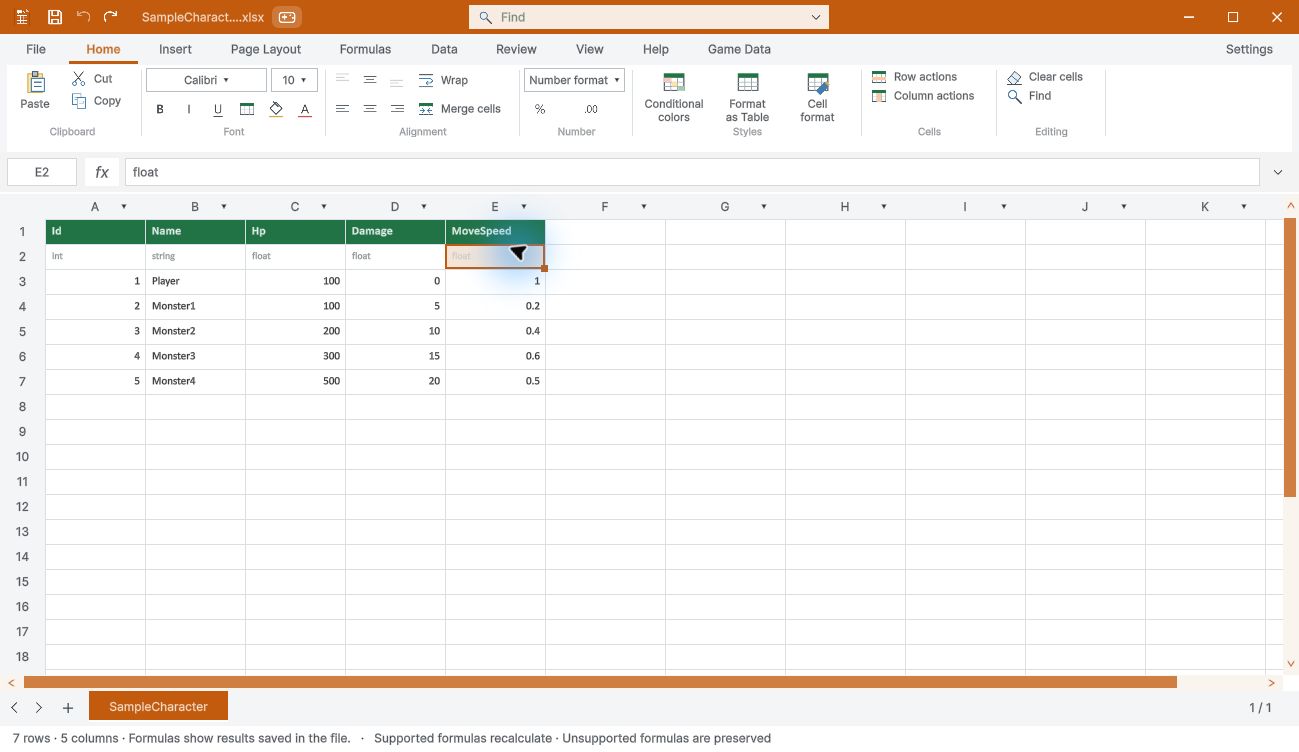
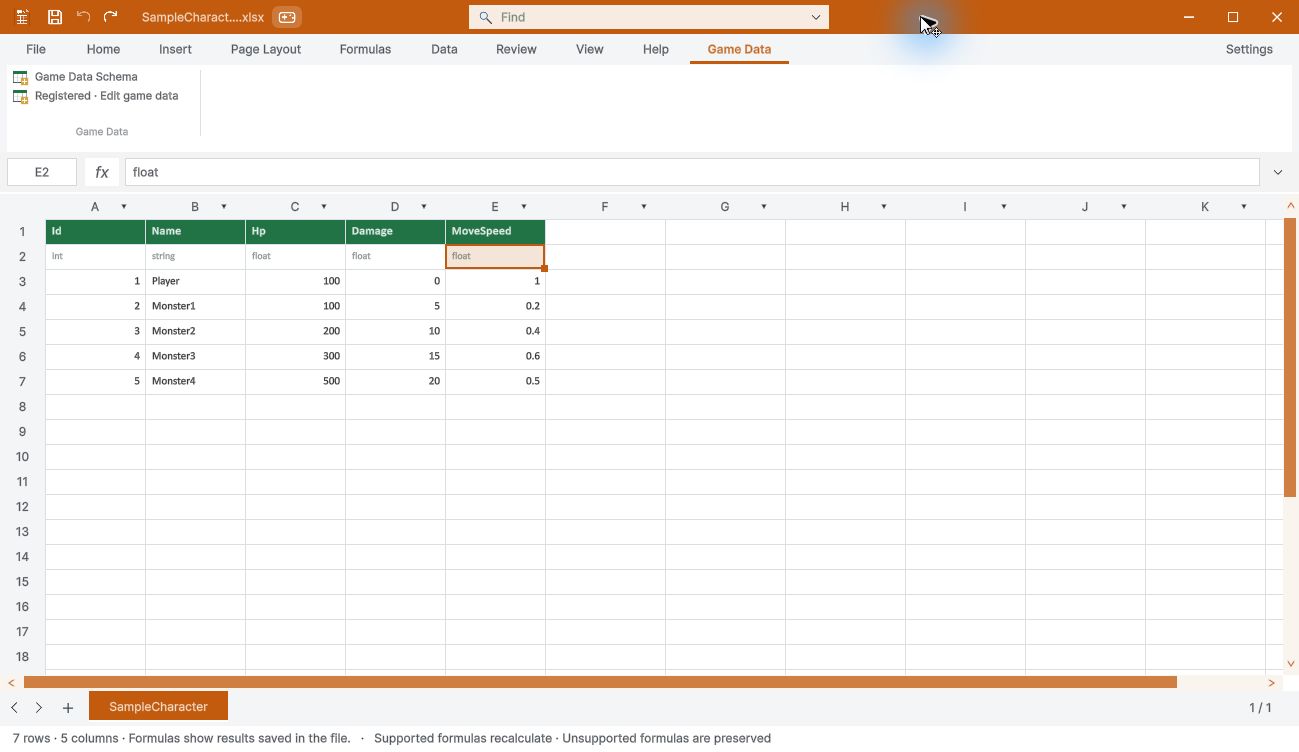
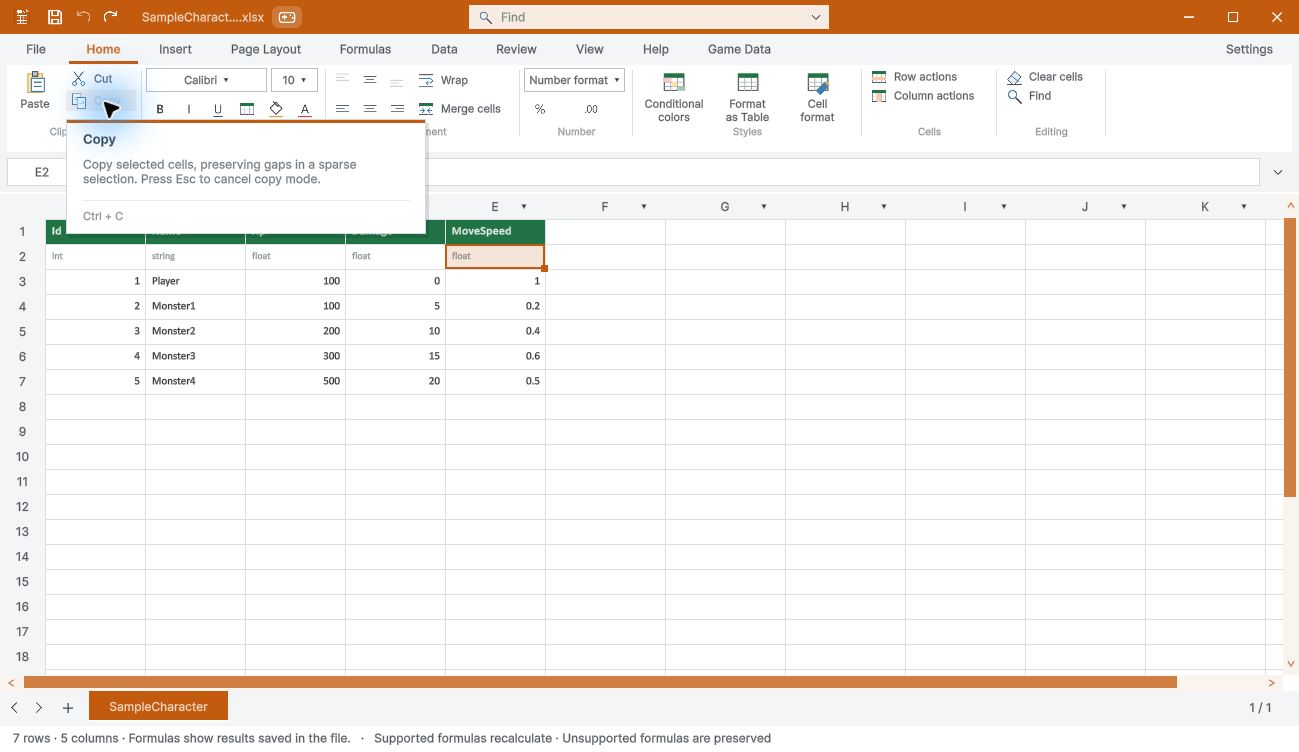
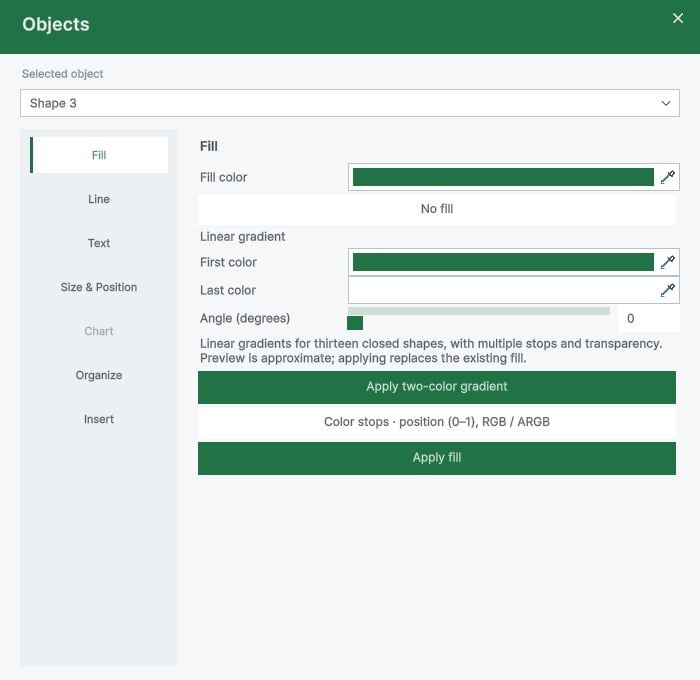
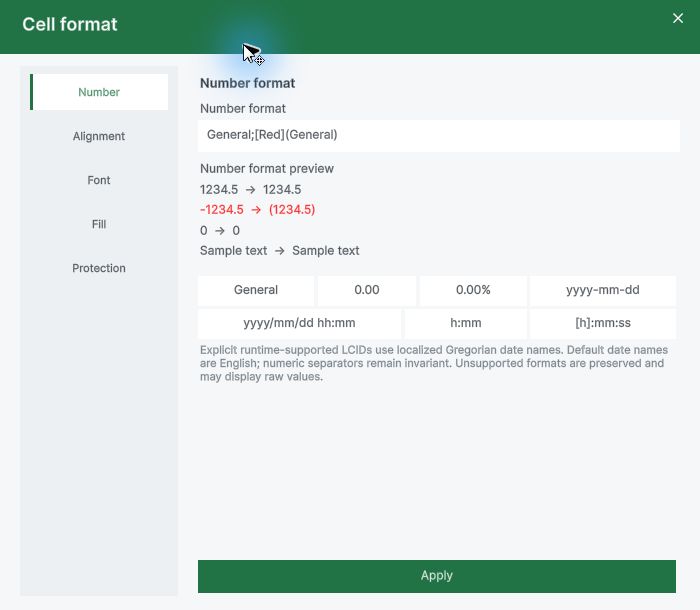
Hover over ribbon tools to see a themed card with the function description and supported shortcut. Disabled tools explain their availability. The new popup screenshots show English UI; other language layouts are not visually certified. Ordinary spreadsheets and registered game data use the same editor. Registration changes the mode and accent in place. Game source row 1 contains names, row 2 types, and records start on row 3. Saving registered data validates types and IDs and updates generated code and binary outputs. Each file opens in its own window. Bottom tabs show worksheets belonging to that file; use the arrows to switch sheets and + to manage sheets. Window position and selected sheet are remembered per file. Registered sheet tabs have an orange background and white text. Right-click or double-click a sheet tab for add, rename and delete. Excel move/copy/hide sheet commands are not yet provided. Double-click a drawing or use Insert > Objects to keep the object selected. Object properties use the shared accent header, left category navigation and independent scrolling. Choose Fill, Line, Text or Size & Position. Cell format uses the same category navigation for Number, Alignment, Font, Fill and Protection. The new popup captures show English UI; historical images retain their recorded language. Home groups clipboard, font, alignment, number, styles, cells and editing tools. General spreadsheets use green; registered game data uses orange. In Find/Replace, enable Wildcards: * matches any sequence, ? one character; ~* / ~? / ~~ search literal symbols. Literal search remains the default. Case-sensitive and whole-cell options also apply. Unsupported Excel operations remain limited; this is not complete Excel compatibility.
08 · Find, replace and statistics
Use Find to move through displayed values or enable formula-source searching. The Find panel supports replacement and replace-all. Check the status bar for selection count, sum and average. Use the name box for an address or rectangular range. Batch changes are validated before being applied.
09 · Game-data formulas and references
Start a numeric formula with =. Supported functions and examples are listed below. A1 references are relative; $A$1 fixes both axes, A$1 fixes the row and $A1 fixes the column. F4 cycles these modes while editing a reference. Alt+= starts an automatic SUM entry; confirm with Enter. IF and IFERROR evaluate only the necessary branch. Integer fields reject fractional results. Calculation uses double precision.
| SUM / AVERAGE / MIN / MAX / COUNT | =SUM(C1:C5) |
| PRODUCT / MEDIAN | =MEDIAN(C1:C5) |
| IF / IFERROR | =IF(C1>0,C1,0) |
| AND / OR / NOT | =IF(AND(C1>0,D1>0),1,0) |
| ABS / SIGN / INT | =ABS(-4) |
| ROUND / ROUNDUP / ROUNDDOWN | =ROUND(C1/3,2) |
| MOD / SQRT / POWER / PI | =POWER(C1,2) |
| COUNTA / COUNTBLANK | =COUNTA(D1:D5) |
| COUNTIF | =COUNTIF(C1:C5,">10") |
| SUMIF / AVERAGEIF | =SUMIF(C1:C5,">10",D1:D5) |
| COUNTIFS | =COUNTIFS(C1:C5,">10",D1:D5,"<100") |
| SUMIFS | =SUMIFS(D1:D5,C1:C5,">10") |
| AVERAGEIFS | =AVERAGEIFS(D1:D5,C1:C5,">10") |
| COUNTIF / SUMIFS (&) | =COUNTIF(C1:C5,">"&B1) |
A1 → $A$1 → A$1 → $A1
#REF! · #CYCLE! · #DIV/0! · #VALUE! · #NAME? · #NUM!
Ctrl+PageUp/PageDown changes sheets outside text editing. Ctrl+` toggles formula display. View also selects visible cells (Alt+;), blanks, formulas or constants within the actual selected data. Hidden and filtered cells are excluded. Conditions for COUNTIF/SUMIF/AVERAGEIF accept quoted comparisons, text, * and ? wildcards, ~ escapes and criterion-cell references. Criteria/sum ranges must have equal dimensions; complete Excel criteria/coercion compatibility is not claimed. Conditional aggregate criteria support & to join quoted text, cell references and numeric expressions, for example ">"&B1. This is supported inside criteria, not as a general text-returning formula operator. Limits: 128 fragments and 32,767 generated characters.
10 · Validation and safe saving
Registered game-data saves validate schema, types, formulas and unique IDs across hidden and visible records before generating runtime data. General workbook sessions provide local unsaved journals under Library/DesignDataTable/Recovery and bounded undo-history recovery. File > Restore unsaved recovery opens supported journals. Source conflicts require review or a separate copy. These checks do not certify interactive crash recovery; keep source control or backups.
11 · Workspace settings
The separate language tab offers nine languages and an explicit System option. Appearance offers green, blue, orange, red, purple and a custom accent, grid visibility, font size and base row height. Editing settings control paste expansion, blank skipping and value copying. Table management lists source and binary files and can unregister a table. Window positions and preferences are saved per project under UserSettings; they are not runtime game options.
12 · General spreadsheet editing
General XLSX/CSV files are edited without the game-data Id/type rows until explicitly registered. Use the cell grid, formula bar, selection, sparse copy/cut, Undo/Redo, fill handle, row/column sizing, sorting, filters and freeze panes. XLSX retains supported formulas and styles; CSV does not store workbook formatting or objects. Use the formula help for supported arguments and limits; a catalog entry does not certify every Excel mode. The current additions below describe supported subsets.
Names, tables and changing array results
Create a defined name N with value 1, then enter =IF(N=1,7,SEQUENCE(N)). Change N to 3: the supported normal formula now spills 1, 2, 3. Dependent spill references update too. Occupied cells are retained and #SPILL! is shown; clear the obstacle to calculate. Undo/Redo and save/reopen retain the supported result. Imported shared or unrecognized formula records are not automatically promoted. In View > View, Convert Excel table to range materializes supported cell formulas and global or sheet-local defined names as sheet-qualified absolute A1 references.
Name scope and aliases are retained. A plain-table example was converted through the Unity UI and its saved XLSX retained all six calculation results. Dynamic or current-row name contexts, chart/conditional/shared formula consumers, table styles, filters and connected metadata remain restricted. This is not a claim of complete Excel conversion compatibility. Connect an external XLSX source to read a worksheet-qualified absolute name, for example =SUM('[Rates.xlsx]Data'!Amounts). Amounts must refer to an absolute cell/range in the source.
Sheet-local names take priority over global names. Source formulas use saved values and are not executed. On reopening, the connection path is restored; explicitly refresh to read the source. Relative, formula-based, recursive and workbook-only external name forms remain unsupported. Selected backend paths passed automated Unity checks. Interactive UI, automatic system-color following, native Excel roundtrip and macOS acceptance remain incomplete.
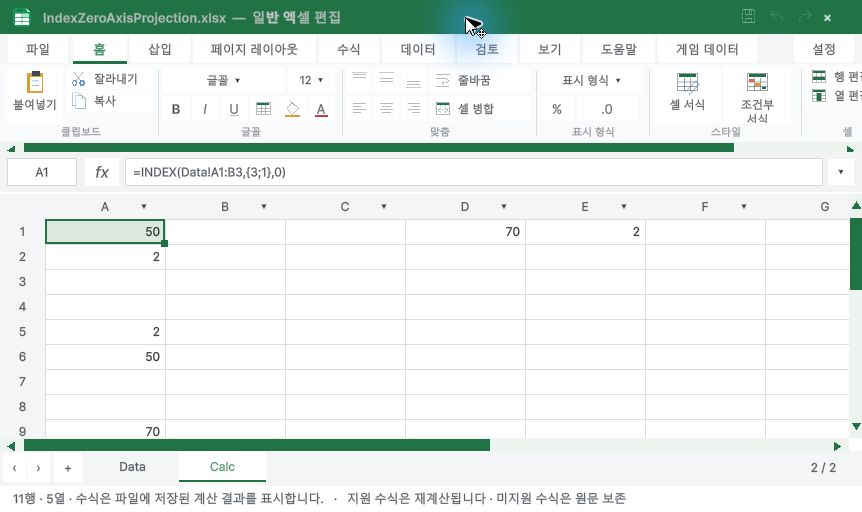
These checks do not establish complete Excel compatibility or release readiness. New editing paths: =INDEX(A1:A3,{1;3}) selects positions in a single column without column_num; =INDEX(A1:B1,{1,2}) selects a single row. A multidimensional source with omitted column_num and zero array indices remain limited. The 0.??% format aligns optional decimal digits: 0.125 displays as 12.5 % with one padding space. Quoted and escaped affixes are supported; numeric source values are unchanged.
Conditional expression/comparison rules can create, load and update supported pattern/gradient fills, which also appear in displayed-fill filter choices. Rectangle linear gradients support 2–256 color stops and 8-bit ARGB entry. Read-modify-write editing retains original higher-precision alpha when changing angle or RGB without changing the preview alpha byte. Windows Mono sample-player checks passed; Windows IL2CPP build was attempted but its Unity support module is missing.
Interactive UI, rendering, native Excel and macOS acceptance remain incomplete. Calculated columns: conversion also accepts a plain table whose calculated-column declaration is backed by an ordinary formula in every data-row cell. Existing shared formulas are normalized through the supported edit path. Missing cell formulas and array declarations are rejected without changing the document.
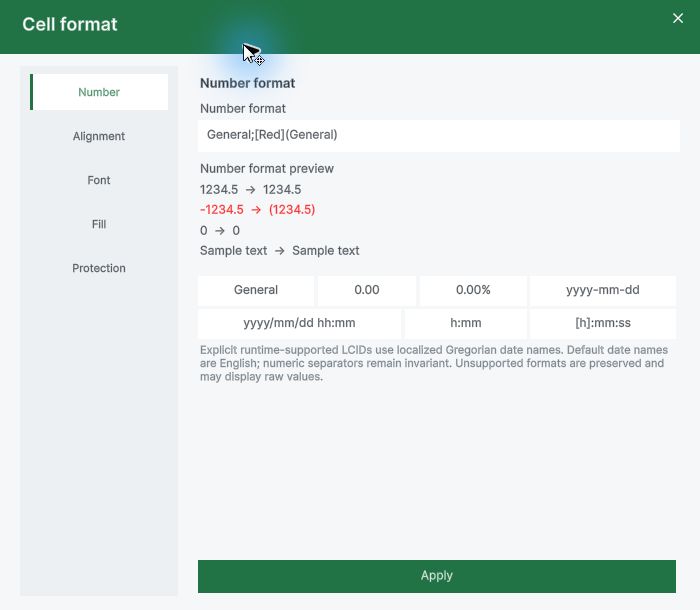
Ten new checks passed both managed execution and actual Unity data-operation execution; this is not a native Excel roundtrip or interactive conversion certification for this case. General inside a custom number-format section is supported, including quoted or escaped affixes: General;[Red](General) displays -12.5 as (12.5), retaining the numeric value. TEXT(A1,"General;[Red](General)") returns the same characters as text; color directives do not color the returned string. Supported section tokens use up to 15 significant digits.
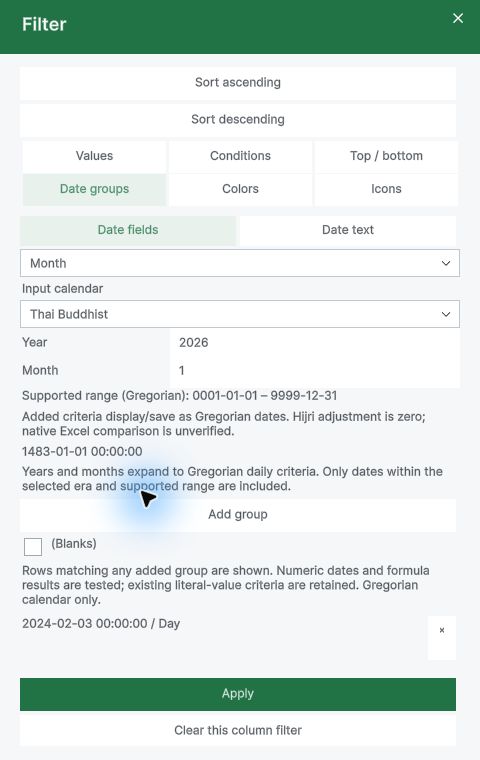
This does not implement Excel’s width-dependent General rounding or automatic scientific-notation layout. General combined with digit, percent or other numeric operators remains unsupported. Date filter: choose Date groups > Date text, select a region (or enter th-TH), enter a full date with a four-digit year, enable the region’s default calendar, then choose Year or Month. The preview expands that calendar period into Gregorian daily criteria. For th-TH, 2567-02-03 with Month previews 2024-02-01 through 2024-02-29, 29 criteria. Add the group, then Apply.
Each period is limited to 400 examined days and the filter to 4096 criteria. Runtime/OS calendar defaults can differ; inspect the preview. The multi-group API TryParseTextGroups supports these periods; the older scalar TryParseText still rejects alternate-calendar year/month groups. This is not native Excel calendar-fidelity acceptance. Press Esc to close a tool popup even while its text input is focused. Closing does not apply pending filter criteria.
Changes already applied through an action button remain applied. In the 1900 date system, DATE counts day overflow on Excel’s serial axis, including its fictitious 1900-02-29: DATE(1900,2,29) returns 60 and DATE(1900,1,22222) returns 22222. DAY(0), MONTH(0), YEAR(0) return 0, 1, 1900. The 1904 date path remains separate. Pinned upstream cached-value checks support these cases; fresh native Excel execution is still pending. A truly empty cell still acts as zero in arithmetic.
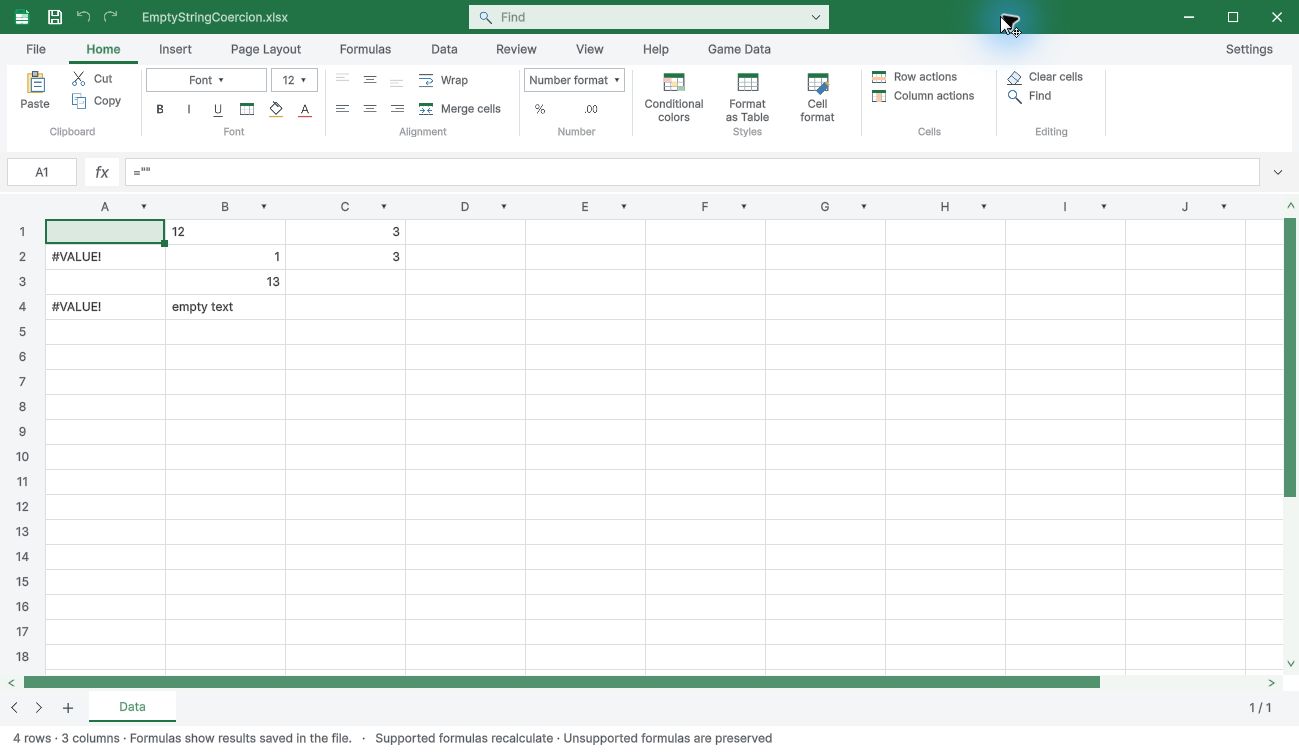
A formula returning an empty string (="") is text: adding, multiplying or passing it to ABS gives #VALUE!. SUM over a range continues to ignore text. Unary + preserves empty text; IFERROR can handle the numeric-conversion error. These distinctions survive Undo and save/reopen. AND/OR distinguish direct arguments from ranges: direct numeric text such as AND("1",1) gives #VALUE!, while text and empty cells inside a range are ignored. A range with no usable logical or numeric values gives #VALUE!.
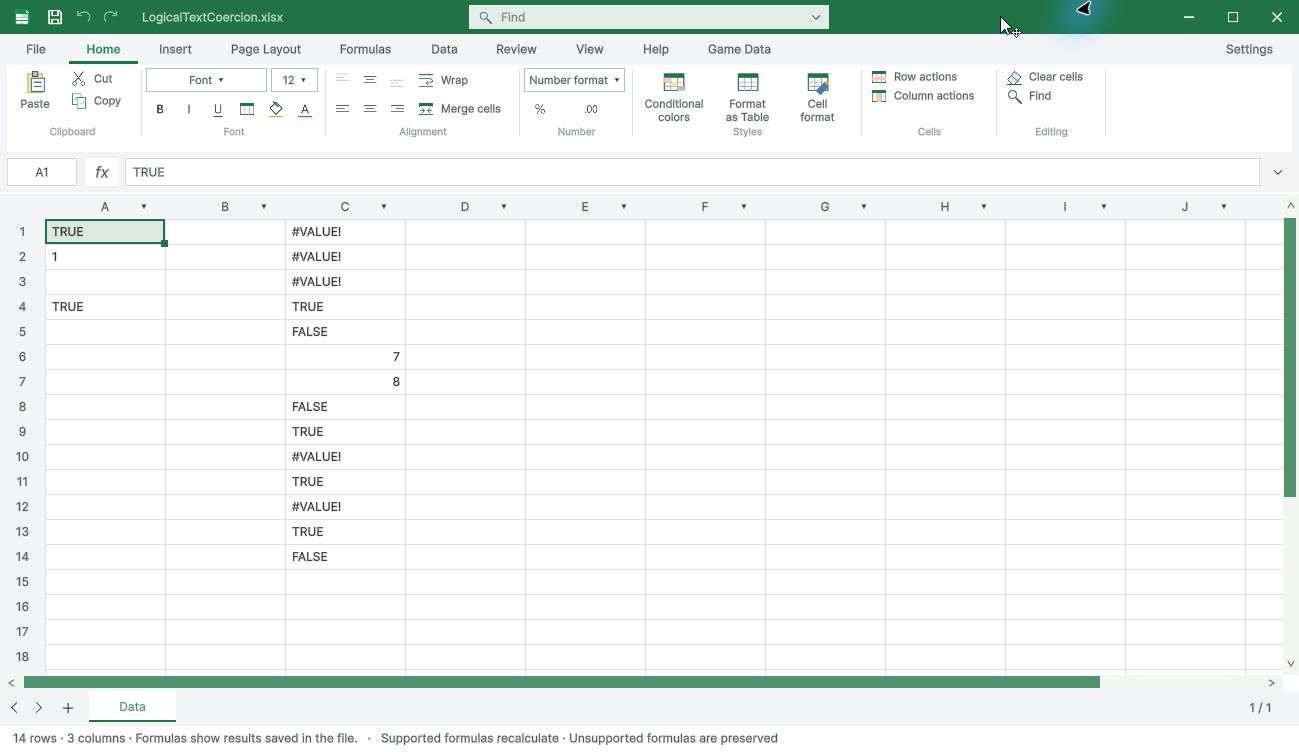
IF and NOT accept case-insensitive TRUE/FALSE text; IF still evaluates only the selected branch. Errors in logical ranges continue to propagate. ROUND, ROUNDUP and ROUNDDOWN truncate fractional digit counts toward zero within the supported digit range (-15 to 15). FLOOR(0,0) returns 0; FLOOR(nonzero,0) still returns #DIV/0!. LARGE/SMALL accept directly supplied logical values and numeric text, while text and logical values inside ranges or array constants are ignored.
These cases are checked against pinned external caches and through Undo and save/reopen; fresh native Excel validation remains separate. MEDIAN returns #NUM! when a range contains no numeric values; true zero values are included. Direct numeric text and logical values count, while unconvertible direct text gives #VALUE!. MID of a truly empty cell returns empty text; MID(0,1,2) returns "0". Undo and save/reopen preserve the distinction. Cutting an entire rectangular worksheet table to another sheet retains its table name/ID, columns, style and filter range.
A1 and structured dependents follow the move; Undo/Redo and save/reopen retain ownership. Overlap with another table and connected/query-table transfers are rejected atomically. These paths are backend verified; native Excel and interactive OS clipboard acceptance remain separate. Line shapes support six end styles: none, triangle, stealth, diamond, oval and open arrow. Object tools independently edit the start/end width and length as Small, Medium or Large. Imported sizes affect preview; changing a type retains its sizes and changing a size retains its type.
Undo/Redo and save/reopen preserve the settings. Preview proportions are approximate; native Excel pixel fidelity is not certified. Shape lines now read, edit and save all 11 DrawingML preset dash identifiers: solid, dot, dash, dashDot, lgDash, lgDashDot, lgDashDotDot, sysDash, sysDot, sysDashDot and sysDashDotDot. The seven added presets have distinct preview patterns and localized Object menu labels. Editing a pattern retains arrow types/sizes and shape text.
Custom dash lists and native Excel pixel fidelity remain outside this completed preset family. Custom dash lists can now be imported and edited in Object tools. Enter alternating dash/space lengths in line-width units, such as 4,2;1,2. Zero-length dashes are previewed as dots. Authoring supports 1–64 pairs with values 0–1000 and rejects an all-zero pair before mutation. Existing arrows, sizes, colors and text are retained; source precision, Undo/Redo and save/reopen are checked.
Preview remains approximate. Object tools edit three caps, three joins and five compound styles and save them to the source XLSX, retaining custom dashes, arrows, sizes and text. Preview now renders flat/round/square caps, round/bevel/miter joins, separate double/triple and asymmetric compound bands. Miter limits clip long spikes. Dash paths continue across corners; very short stops are bounded for safety. Curves, band ratios and dash spacing are approximate; native Excel pixel fidelity is unverified.
API-only miter limit editing is available. VALUE now parses US/invariant numeric and dollar/accounting text, percentages, supported full-year dates and clock times. Official examples VALUE("$1,000") and VALUE("16:48:00")-VALUE("12:00:00") calculate as1000 and0.2. The workbook 1900/1904 date system is respected, including serial60 for the fictitious1900-02-29 in the1900 system.
Host locale does not alter this defined input grammar; arbitrary localized dates/currency and elapsed times beyond a day are not covered. CONCATENATE is now distinct from CONCAT: ordinary formulas use legacy implicit intersection (the value at the formula row/column, or the top-left array constant), while CONCAT combines whole ranges. Blank references remain empty text. Explicit dynamic-array owner metadata selects elementwise CONCATENATE instead.
Explicit @/SINGLE also selects a two-dimensional cross-sheet intersection when the caller coordinates fall within that range; no intersection returns#VALUE!. Automatic legacy/dynamic inference for every external producer and native Excel compatibility remain unverified. COUNTIF/SUMIF/AVERAGEIF accept array constants as criteria; explicit dynamic-array owners also evaluate multi-cell criterion references elementwise. Ordinary references use caller-coordinate intersection. Error criteria can match error cells; unrelated range errors do not abort every count.
SUMIF/AVERAGEIF align a supplied sum/average range from its first cell to the criterion range dimensions, while SUMIFS retains equal-shape requirements. Array evaluation is bounded to256 criteria and a1,000,000-cell work estimate. Native Excel error/version edge cases, wider multi-criteria edge cases and all producer-mode inference remain unverified. COUNTIFS/SUMIFS/AVERAGEIFS now combine criteria arrays. Same-direction arrays pair by position; a row and a column form a result grid. Explicit dynamic criterion references preserve that layout.
Per-result errors remain local so IFERROR can handle failed entries without discarding successful entries. Error-valued criteria arrays now work in single-conditional functions too. Supported bounds:127 range/criterion pairs,256 output criteria combinations and estimated1,000,000 cell-criterion operations. Broader producer modes, incompatible-array semantics and native Excel acceptance remain unverified. Error-criterion distinction: COUNTIF can count matching error cells; COUNTIFS/SUMIFS/AVERAGEIFS propagate an error criterion to the corresponding result.
IFERROR can handle those output errors. Array-target XLOOKUP now accepts an array or range as if_not_found: missing targets use its first item, matching the existing first-item projection of multi-item return records. Scalar XLOOKUP still returns a full fallback array. Fallback is read only when needed, and unused later fallback errors do not replace successful matches. Use INDEX(return_table,XMATCH(targets,keys),column_indices) for a rectangular set of full records.
These supported engine modes do not certify all native Excel version/fallback behaviors. Single accounting and double accounting underlines are available in normal cell formatting and conditional formatting. Source values singleAccounting/doubleAccounting are read and written, including priority inheritance and removal. Preview spans the padded content width and places accounting rules below ordinary underlines; double rules are clipped to the visible cell. Justified/distributed text draws one accounting rule per visual line rather than per word.
The geometry is approximate: rotated/mixed-script/native Excel pixel fidelity remains unverified. On protected worksheets, Cut/Paste moves only the contents of unlocked selected cells. Source and destination formatting and lock settings stay in place; sparse gaps are untouched. Moved formula references, other-sheet dependents and source-local names are maintained, including overlapping moves. A locked source/target, changed cut source, out-of-bounds move or protected formula expanding into an array rejects the complete operation. Literal text such as A1 or =A1 remains text.
Array ownership moves remain unsupported in this protected content path. Interactive UI and native Excel parity are not yet accepted. Content-only cut also preserves native error, boolean, ISO date and numeric XML value types and rich text runs instead of re-parsing them as typed input. This preserves the stored numeric token; it does not extend calculation precision. Shared formulas on an editable ordinary sheet are expanded before moving or replacing their anchor during a content cut involving a protected sheet. Unselected followers remain independent formulas.
Reference maintenance also expands affected shared dependent formulas per cell, so moving one referenced row does not redirect the other rows. An unaffected worksheet keeps its original shared-formula representation. Sheet protection metadata stays in place. Direct content editing of a protected sheet that still contains shared/array metadata remains guarded; native Excel parity and interactive clipboard acceptance remain pending. Shift+F8 toggles Add to Selection.
Keep the existing selection while using arrows or clicking another cell/range; Shift+Arrow extends the active range. Copy ends add mode so the destination can be selected normally. Esc exits add mode and cancels the internal copy border. Sparse copy keeps cell spacing and does not overwrite unselected gaps. Windows UI checks covered rectangular copy, relative formulas, sparse paste and these selection keys; Ctrl-click itself and cut UI remain separate acceptance tasks. INDEX keeps whole-row/column reference semantics for scalar zero arguments.
When the other index is an array, an omitted or scalar-zero axis projects its first row/column instead: INDEX(A1:B3,{1;3},0) selects A1/A3; INDEX(A1:B3,0,{1,2}) selects A1/B1. A row index array on a two-dimensional source can omit column_num and selects the first column. Zero entries inside index arrays remain explicitly unsupported. Engine tests cover projection layout, per-cell errors, dependency changes, Undo/Redo and save/reopen.
Microsoft Support documents scalar zero; array projection examples are from a Microsoft-hosted support discussion, not a native Excel version acceptance test. Number masks containing ? placeholders can now put quoted or escaped literal characters between digit positions, for example ??"-"?? or ??" kg".??. Missing ? positions use spaces; quoted digits do not consume numeric positions. Integer overflow digits, fixed-decimal rounding and embedded fractional literals are supported in bounded ungrouped masks (up to15 integer and15 fractional positions).
Grid formatting and TEXT share the path and preserve underlying numeric values. Internal grouping, percent/scientific combinations, exact font-width spacing and native Excel/platform comparison remain incomplete. Preservation regression evidence includes eight additional pinned public XLSX files with comments/VML, hyperlinks, extra drawings and worksheet/workbook protection, including140000 cells and50000 merged ranges. No-op SaveAs compares all package parts; bounded edits retain existing cells and unrelated structures; locked writes are rejected.
These are managed/Unity backend tests, not a native Excel application roundtrip or visual-equivalence certification. Validation fixtures are not distributed in the asset. WorkbookEditSession.SaveAs writes XLSX and now requires an .xlsx destination (case-insensitive). It rejects .csv/.json/.xlsm or missing extensions before creating output; use the format conversion/export API for those formats. A CSV source can still be saved as XLSX. Save and SaveAs use short unique temporary names in the destination directory.
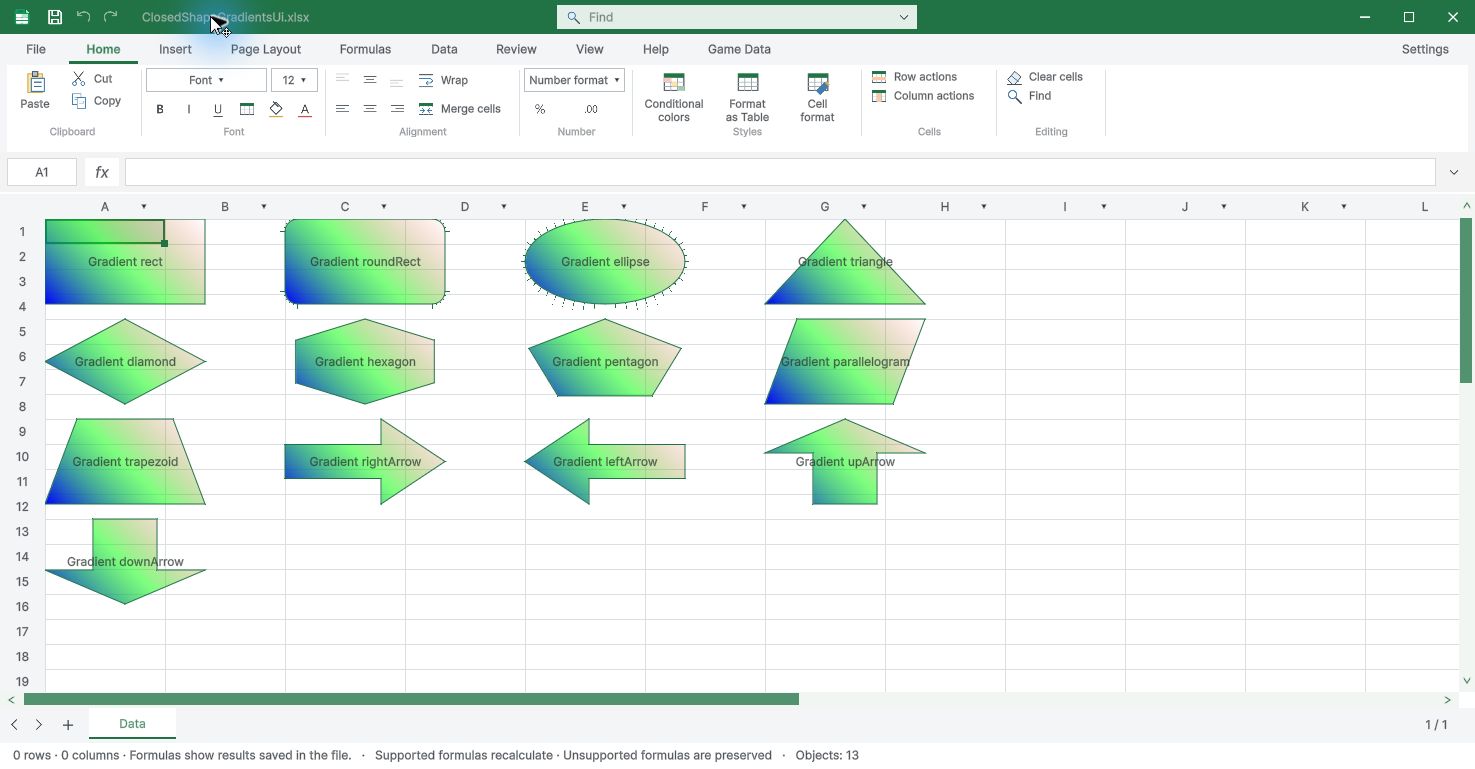
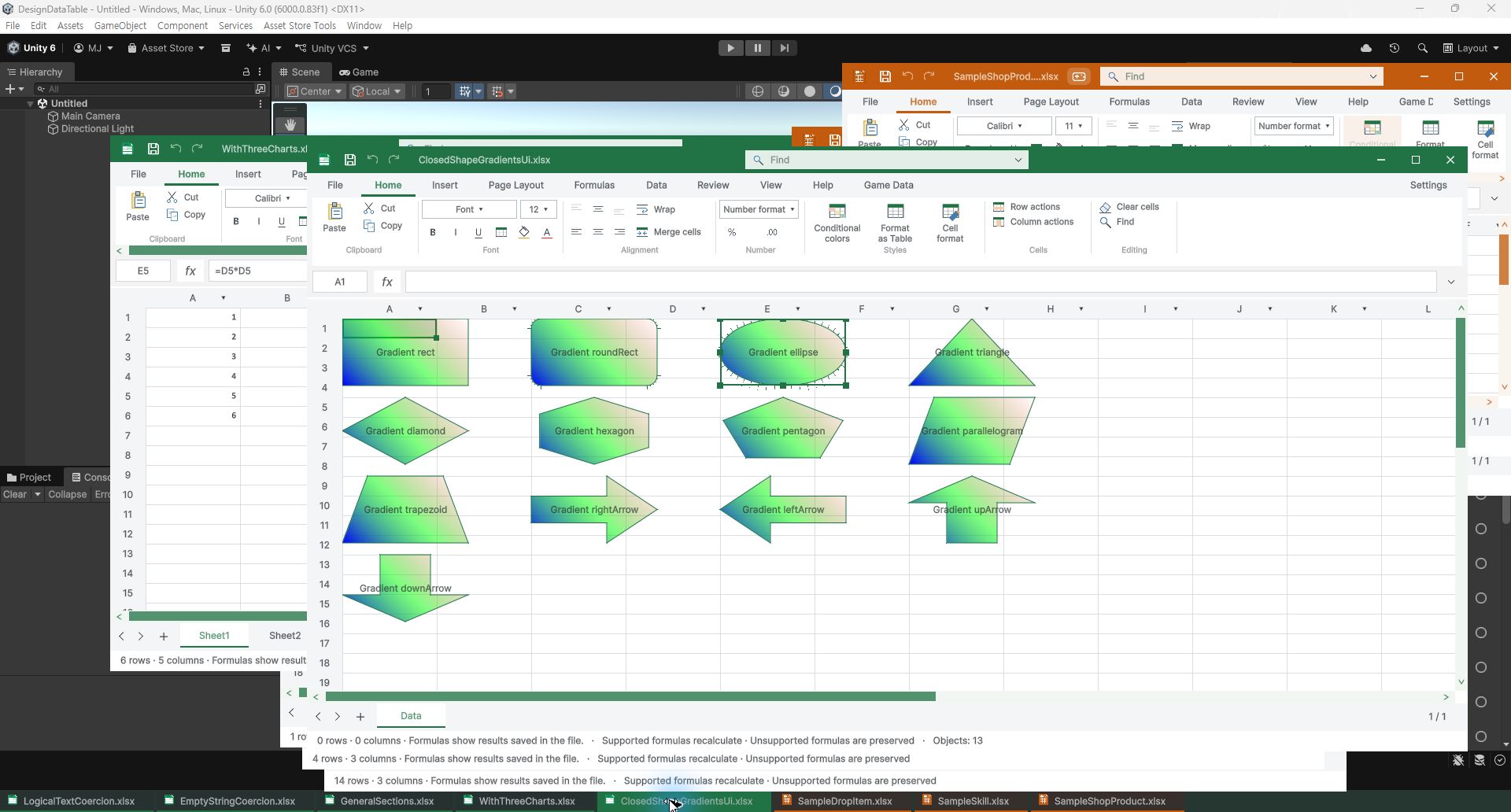
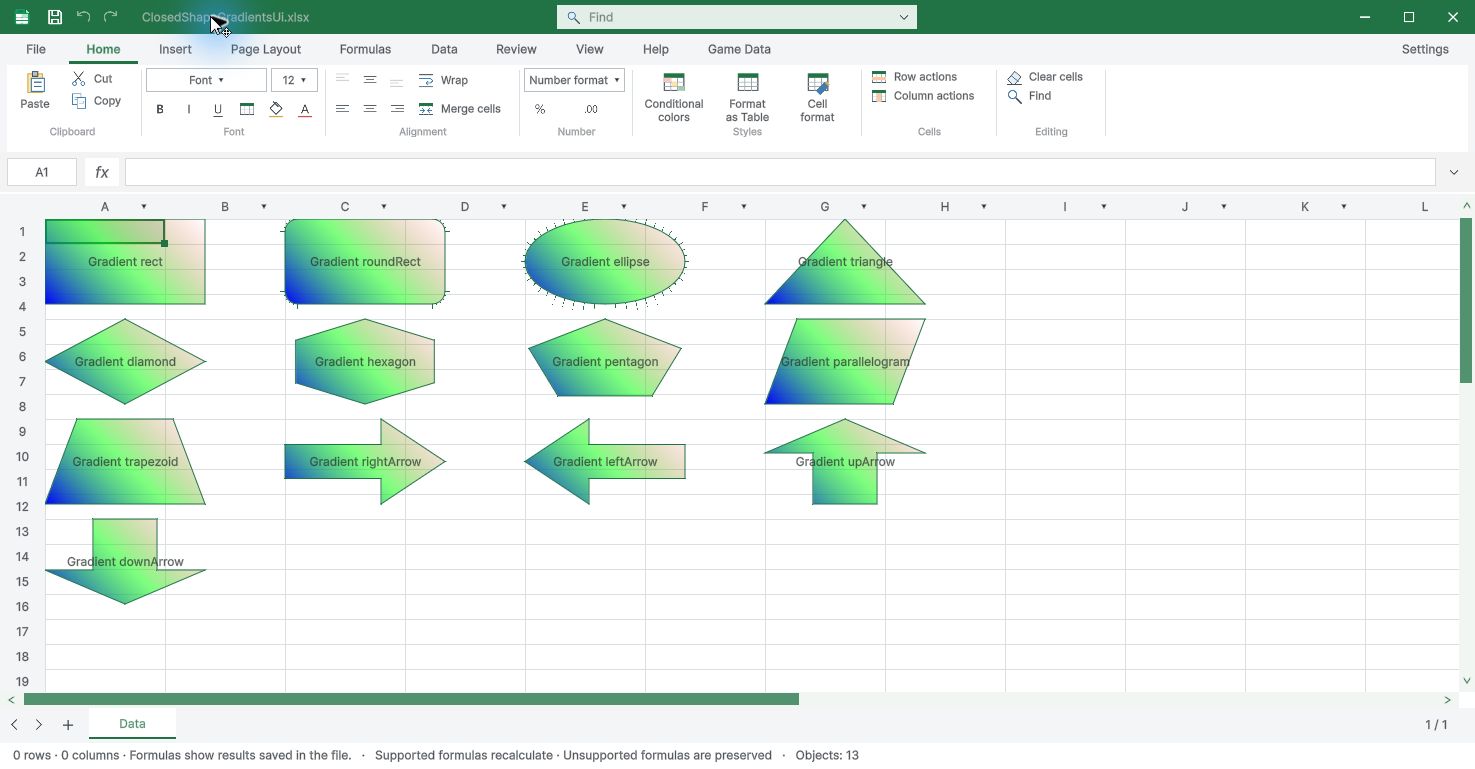
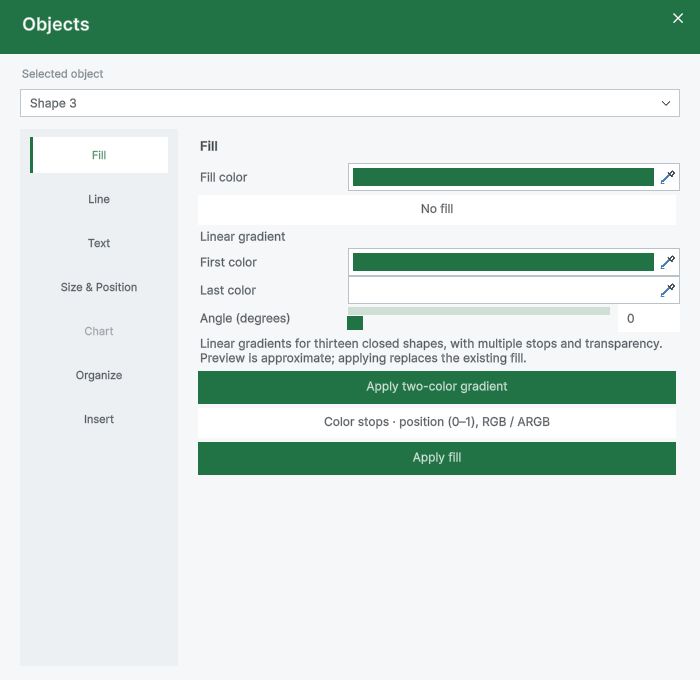
Failure cleanup preserves unrelated temporary files, the original document, pending edits/history and recovery data; existing destinations are not overwritten. This does not remove operating-system limits on arbitrarily long directories. Linear gradient fill is available for thirteen closed shape presets, including ellipses, triangles, diamonds and four arrow directions. Use Object settings > Linear gradient for two colors or multiple stops with transparency.
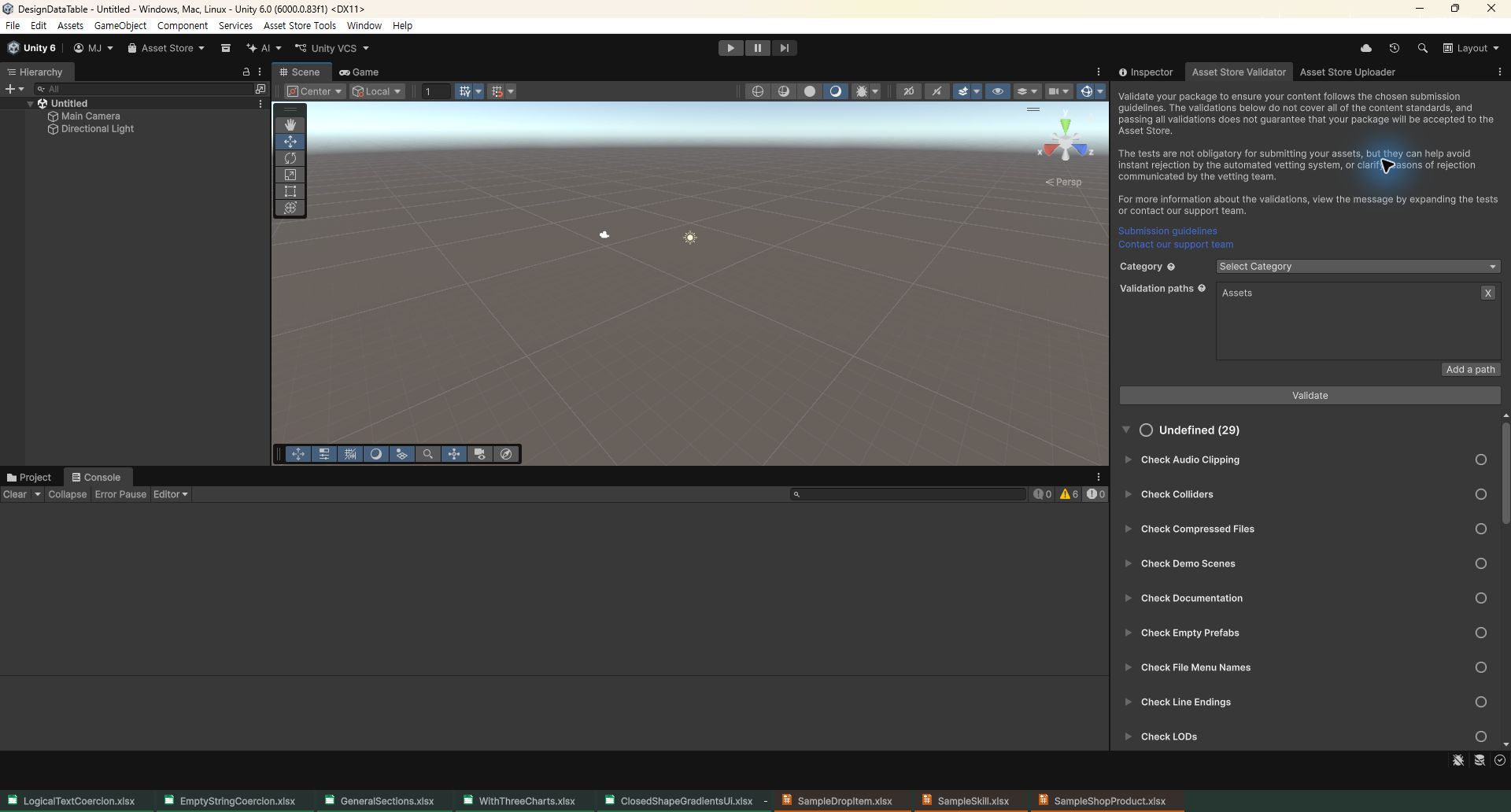
The preview clips fill to the same polygon as the outline, with sampled edges; it is an approximation rather than exact Excel geometry. Up/down arrow creation is also available. Lines, custom geometry and path gradients remain outside this editor support. Open workbooks appear in a horizontal 28 px bar below Unity’s console status line, whether minimized or visible. Click a file to activate or restore it; restoring does not remove it from the list. General files follow the configured accent; game-data workbooks use orange.
The active file is highlighted and minimized files have a small marker. Closing a document removes its button. The bar reserves space while at least one workbook is open and disappears when none remain. Windows/Korean UI tested; other language layouts and mixed DPI remain unverified. Minimize is Windows-only. Document buttons retain their filename-based widths. Only the unused area and end margins use a theme-tinted background; tabs do not stretch. The first button starts at the bar’s left edge and fills its height; button widths are unchanged.
Assets > Design Data Table > Open spreadsheet opens a selected XLSX/CSV file; with a folder, unsupported file or no selection it opens the file picker. Window > Design Data Table > Open Spreadsheet File always opens the picker. When open workbooks exceed the available width, a Windows-style overflow button at the right opens the document list. Buttons remain whole; the mouse wheel moves through documents and activating a document reveals its button.
Long filenames are shortened while retaining the extension. Only a small right-end gap of up to 32 px is absorbed by the last visible document button. Larger gaps remain empty and button widths are preserved. This applies with or without the overflow list. Unsaved changes are marked with * in the window title, document bar, and overflow list, including pending cell or formula input. Saving clears the marker after the changes are saved successfully. On Windows, workbook windows use normal front-to-back ordering so clicking the Unity editor can bring it in front.
Clicking a document button activates that workbook. Background list refresh does not request keyboard focus. Native activation behavior still requires visual verification. On Windows, minimizing the Unity main editor keeps open workbook windows visible without activating them. Documents explicitly minimized with their own button remain minimized. Closing Unity still ends these editor windows. Native behavior remains pending visual verification. Drag bottom document buttons to reorder them live.
The held button’s visible center determines insertion, independently of where it was grabbed or whether the pointer is above or below the bar. Its edges trigger overflow navigation. Release keeps the current order even outside the bar; Escape restores the original order while preserving newly opened documents and excluding closed ones. A click activates the document. Order survives script reloads. Window edges and corners resize live.
On Windows, the editor update applies the latest physical pointer position outside the GUI event, using one captured native window handle and a fixed pixel coordinate system for the gesture. Escape restores the original bounds; release outside the window is detected. Display text and theme lookups reuse bounded caches, invalidated after edits, recalculation and undo/redo. Actual interactive smoothness still requires visual verification. While reordering, a raised document preview follows the grabbed horizontal point, including its icon, filename and unsaved marker.
The original slot is dimmed and the insertion line stays visible. During live resizing, content repaints synchronously immediately after the native geometry update; redundant deferred repaints are avoided. This targets old content appearing at a newly moved top/left origin. Actual jitter resolution still requires visual confirmation. Window appearance: workbook title buttons, preferences, bug reports and tool popups share the same theme components. The report form scrolls independently of its fixed action footer; resize the report or preferences from any edge or corner.
Close, undo and redo use drawn PNG artwork. Scrollbar arrows use smooth themed chevrons. These presentation changes await an actual Unity screen capture; historical screenshots are not current verification. Clicking a document button brings the visible workbook windows forward together, preserving their relative stacking, and places the selected workbook on top. Other explicitly minimized workbooks remain minimized. Several workbook windows can stay visible at once.
Actual screen verification of this change is pending. Right-click a document button or an entry in the overflow list for Restore, Minimize, Maximize and Close. Unavailable actions are dimmed according to the window state and platform support. The menu uses the document accent and PNG icons. Arrow keys navigate enabled commands, Enter runs one and Esc dismisses the menu. Closing a changed document follows the existing save confirmation. This menu awaits actual Unity screen verification. Document popups: menus and tool windows now retain the workbook that opened them.
Popup stacking raises visible documents without moving keyboard focus away from the popup; other minimized documents stay minimized. Unity auxiliary editors and tooltip containers use the same ownership path where available. An active game-data sheet shows a controller emblem beside the title filename; a general sheet has no emblem. The orange theme remains. Popup focus, tooltip placement and the title badge still need actual Unity screen verification. Popup presentation avoids repeated window restacking.
In supported Unity versions, menus are first created without activation, attached to the initiating document, and only then given input focus. A retry is scheduled only if the native handle is not yet available. Visible document windows are reordered only when they are actually behind the Unity main window. Visual flicker verification remains pending. Shared controls: spreadsheet tool windows use custom checkboxes, choice lists, numeric fields, sliders and color-field faces.
Check marks use PNG artwork, and unchecked, checked, hover, focus, mixed and disabled states have explicit colors. The input caret and selection also use the theme. Choice lists appear inside their current window with scrolling, arrow keys, Home/End, type-ahead, Enter and Esc. Text editing, color selection/eyedropper and asset picking retain Unity functionality beneath the themed fields. Specialized Unity color/asset picker windows retain their own interfaces. Actual control interaction and screenshots have not been visually verified.
Recent editing additions
View → Text formula compatibility selects version 1 (UTF-16 units) or version 2 (surrogate pairs count as one) for LEN, MID, FIND, SEARCH and REPLACE. The setting belongs to this XLSX workbook and recalculates formulas; Undo/Redo uses the normal session history. CSV has no version setting. Alternate-calendar year/month filter input expands a full supported period into Gregorian daily criteria (400 days per period, 4,096 added criteria); periods crossing era or supported-range boundaries are refused.
Settings → Appearance offers optional system display colors refreshed every two seconds, with saved/default colors as fallback. Reapply Filters separately to update persisted row visibility. Unwrapped single-line text supports rotated shrink-to-fit preview; basic fractional ? number formats retain alignment spaces. Selected backend paths were exercised in Unity; automatic system-color following, interactive UI, native Excel roundtrip and macOS acceptance remain unverified. Earlier test counts and screenshots describe older snapshots.
These are general spreadsheet features; game-data registration and typed export remain separate. Advanced alignment now offers horizontal/vertical Justify and Distributed, plus Justify Last Line. Unrotated previews and automatic row heights share a bounded layout; overlong words split at text-element boundaries. Complex-script and bidirectional text use the standard preview. Exact Excel spacing, rotation combinations and runtime acceptance remain unverified.
Earlier implementation notes and examples
Historical notes below record successive implementation stages. Some old counts and unsupported statements were superseded by later work. They are retained for examples and context, not as the current support or acceptance matrix. Read the current instructions above and Verification / Compatibility for present limits.
Unregistered XLSX/CSV files use ordinary cells without Id/type rows; registered sheets use game-data mode. Edit cells or the formula bar; Enter commits and Esc cancels. The ribbon provides clipboard, undo/redo, formatting, sheets, names, sorting, filters, freeze panes and objects. Drag the fill handle or header boundaries; double-click boundaries to fit. Sparse copy/cut preserves gaps, types and styles, including cuts between worksheets; supported partial-range cuts rewrite references; unsupported combinations are refused.
XLSX supports fonts, fills, borders, alignment, wrapping, number formats, merges and row/column structure. CSV retains values, separator declaration and supported encoding; save an XLSX copy for formatting. The formula subset includes cross-sheet and absolute defined-name references, whole rows/columns, SUMIFS/COUNTIFS/AVERAGEIFS and XLOOKUP. Unsupported formulas retain source/cache and display #UNSUPPORTED!. The name manager accepts absolute named ranges.
Objects inserts original PNG/JPEG data and basic shapes, and edits top-level object position, size or deletion; grouped children remain preserved. Insert chart uses selected first-row series names and first-column categories: six basic types, up to 200 rows/12 series, one series for pie. Objects also applies chart titles. Saving backs up the source, checks external changes, preserves unrelated package parts and refreshes supported caches. Unsaved edits are journaled after idle time under Library/DesignDataTable/Recovery; File > Restore unsaved recovery opens the journal.
If the source changed or disappeared, save a separate XLSX copy. Shared formulas are expanded to independent equivalent formulas when edited. Select an object and drag to move it, use its eight handles to resize, hold Shift for aspect ratio, use arrows to nudge (Shift: 10 px), Delete to remove, and Esc to cancel. The object panel edits shape text. Multi-axis autofit is one undoable operation. Asset moves retain the session and recovery journal. Real mouse/keyboard verification is pending.
General formulas follow Excel precedence: negation before exponentiation and chained powers from left to right. Unsupported parser expressions retain their saved formula caches during unrelated edits. Mixed-type sorting separates numbers, text, logical values and errors, and keeps genuine blanks last in either direction. Ctrl/Command+Enter enters a value or relative formula into the selected cells; Alt+Enter inserts a line break while editing. IME composition defers worksheet shortcuts. Invalid drafts remain available for correction during recovery.
Mac Command equivalents are handled in code; actual macOS, IME and pointer verification remains pending. Newly registered Excel game tables retain Excel operator precedence; existing legacy game tables keep their prior arithmetic. Manual row hiding remains when value filters are cleared, including after save/reopen. Show Rows still respects filters. Colors mode filters RGB, theme or indexed fill/font colors; choose No fill for unfilled cells and blank rows.
Other columns combine with AND, manual hiding stays active, and criteria, differential styles and visibility support save/reopen and atomic undo/redo. Reapply after formatting changes. Pattern colors, table styles and unsupported conditional rules and number-format font colors remain unsupported; edits reject atomically and source files remain preserved. Icon filters remain preserved without editing. Real Excel application interoperability, popup input and macOS execution are unverified.
For external files, row.hidden alone cannot identify a manually hidden row that also fails a filter. In a column filter choose Conditions, select a comparison and enter a number or text. Numeric criteria use a decimal point. Add a second condition with Both (AND) or Either (OR). Text equality supports *word*, ? and ~ escapes. Values mode restores the existing checklist. MATCH keeps original positions in sparse columns, distinguishes numeric/text keys and supports exact-match wildcards.
Selected images, top-level shapes and charts use an internal object clipboard: Ctrl/Command+C or X, select a target cell and paste. Cut removes the source only after successful insertion and rejects changed sources. Object deletion leaves cell contents intact. Clipboard snapshots retain only the object and its dependencies; undo, recovery and two-cell anchors are preserved. This is not native Excel/OS image clipboard interoperability. Cross-workbook chart references/cuts and grouped-child copying remain unfinished.
Registered-table edits retain their original worksheet connection. Importing a multi-sheet native XLSX offers a source-sheet picker; imported records replace current table data while keeping the destination source. CSV and other metadata-free inputs use the destination arithmetic mode; native XLSX keeps its stored mode. General XLSX saving refreshes supported local cell-range chart caches while retaining cache/point number formats, styles and extension metadata. Unrelated saves retain chart XML bytes. Unsupported chart references keep previous caches.
Game-table saves preserve existing chart parts and request recalculation when opened in Excel. Actual UI, IME, multi-monitor and macOS acceptance remains incomplete.
Array entry and source-driven results
In a blank general XLSX sheet, enter the first example below in A1 and F1. The array fills A1:B2 and the sum is 10. The anchor owns its generated cells; edit or clear the anchor, not an individual child. Source changes recalculate supported arrays, including shape changes. Undo/redo restores the input and generated cells together. Save/reopen retains typed results and dynamic-array metadata. Use a separate blank sheet for the second example: E1=TRUE produces a horizontal array; changing E1 to FALSE produces A1=3, A2=4 and F1=7. A1# refers to the complete array.
Stored XLSX formulas use _xlfn.ANCHORARRAY; this storage form may appear in the formula bar after reopening. Direct child references calculate the owner, rather than trusting stale cache values. Supported worksheet errors, including #SPILL!, can reach IFERROR; cycles, unsupported calculations and engine limits remain visible. Internal copy/cut supports complete arrays and sparse gaps. Fill repeats supported formulas and source cell styles. Formatting, dimensions, visibility, filters and sorting outside arrays are supported; source changes refresh dependent arrays.
Row/column changes before arrays move their ownership and references. Deleting whole arrays is supported; splitting an array is rejected. Sheet add/rename/delete and basic object editing preserve supported arrays. On a separate blank sheet, try the third example. SEQUENCE(2,3,10,2) produces 10,12,14 / 16,18,20; its sum is 90. Rows/columns must be positive integers, up to 100,000 output cells. Omitted arguments default to 1. Negative and zero steps work. XLSX stores _xlfn.SEQUENCE. Recovery restores array drafts, cell styles and unsaved objects.
A separate owned process was forcibly terminated and a fresh process recovered its journal and draft; this does not certify interactive Unity crash recovery. Invalid child drafts remain available separately. Values or merged cells retain the formula as #SPILL!. Clear the value or unmerge to expand. Output beyond the sheet retains #SPILL!; reduce its size. Overlap with another verified dynamic array also retains #SPILL!; clear or move its anchor to expand the pending array. Other unsafe placements remain rejected.
Actual UI input, Excel/OS clipboard and macOS acceptance remain unverified. FILTER(array, include, [if_empty]) returns matching rows or columns. Include is one Boolean/numeric column matching the source height, or one row matching its width. Inputs and output are limited to 100,000 cells. No matches use the lazy if_empty value; without it, #CALC! is returned and can be handled with IFERROR. Source changes resize the output, including an initially empty result. The fourth example on a separate blank sheet returns 10 and 30, sum 40. XLSX stores _xlfn._xlws.FILTER.
Broader Excel coercion and actual application round trips remain unverified. SORT(array, [sort_index], [sort_order], [by_col]) returns a sorted copy without rearranging the source. The default is first-column ascending row order; by_col=TRUE sorts columns using a row key. Use order 1 or -1 and one key; inputs/results are limited to 100,000 cells. Ties keep their original order and blanks sort last. Source edits, Undo/Redo and save/reopen refresh typed results. In a separate empty sheet the fifth example returns 10, 20, 30 and sum 60. XLSX stores _xlfn._xlws.SORT.
Multiple keys, locale ordering and mixed-error order await broader and actual Excel verification. Disjoint references can be grouped with parentheses, for example SUM((A1:A2,C1:C2)). SUM/AVERAGE/MIN/MAX/COUNT/COUNTA/COUNTBLANK/PRODUCT/MEDIAN, AND/OR, CONCAT/CONCATENATE and SUBTOTAL accept reference areas. Absolute defined names may also contain comma-separated areas, including other sheets. Source changes, Undo/Redo and save/reopen retain area identity and types. At most 255 areas are allowed; existing calculation limits still apply.
Shape-dependent functions and scalar/array coercion of unions remain explicitly unsupported. Overlapping-area and real Excel behavior need further verification. Partial-range cut now rewrites direct finite-range arguments of supported union-consuming aggregates. Remaining source cells and moved destination cells become explicit sheet-qualified areas; sparse offsets and absolute markers survive, and consecutive equal-width areas are coalesced. Undo/Redo and save/reopen retain the result. Up to 255 areas and 8,192 formula characters are allowed.
Shape-dependent functions, range arithmetic, chart references and unsupported named-reference uses and overwriting unmoved referenced cells still reject atomically. Whole-row and whole-column arguments such as SUM(A:A), SUM(1:1) and COUNTBLANK(A:A) now follow partial cuts through explicit source/destination areas. Sparse storage and implicit blank counts are retained without populating entire worksheets. Column ranges keep implicit row boundaries fixed; row ranges keep implicit column boundaries fixed when copied later. Existing absolute markers remain fixed.
Later single-cell moves, Undo/Redo and save/reopen preserve results. The aggregate-only safety gates and area/formula limits still apply. Full Excel parity and actual Excel/UI/Mac acceptance remain unverified. Partial cuts now update direct absolute defined ranges used by supported union-consuming aggregates. Global and sheet-local name identities are retained; local names can shadow a changed global name independently. Formula, validation and chart references are checked before committing.
Shape-dependent name uses and unvalidated aliases reject the entire move and preserve the source file and session. Relative name bases and complex existing union definitions remain restricted. Undo/Redo and save/reopen retain the updated named areas. Actual Excel/UI/Mac comparison remains pending. Partial cuts that split named ranges still reject INDIRECT, EVALUATE or GET.CELL dependencies. Supported INDIRECT calculation does not bypass this guard; EVALUATE and GET.CELL remain unsupported. Source content is preserved when an operation is refused.
Native Excel/UI/macOS acceptance remains pending.
A1: ={1,2;3,4}
F1: =SUM(A1#)
E1: TRUE
A1: =IF(E1,{1,2},{3;4})
F1: =SUM(A1#)
E1: FALSEA1: =SEQUENCE(2,3,10,2) F1: =SUM(A1#)
A1: =FILTER({10;20;30},{TRUE;FALSE;TRUE})
F1: =SUM(A1#)
A1: =SORT({30;10;20})
F1: =SUM(A1#)Top and bottom numeric filters
Open a column filter and choose Top / bottom. Choose Top or Bottom, enter an item count (whole number 1–255) or percentage (0–100), then Apply. Thresholds use numeric values from the original filter range, including calculated numbers, before other columns filter the result. Text, numeric-looking text, blanks, logical values and errors do not participate. Percentages round the requested item count up; ties at the boundary are included. Zero percent hides all data rows. Multiple columns combine with AND. Manual hidden rows remain hidden.
Saved top10 criteria and the calculated filterVal boundary reopen as editable controls; clearing the column keeps manual hiding. Changing a value does not automatically reapply the filter: apply it again. Undo/redo restores criteria and visibility. Colors mode filters RGB, theme or indexed fill/font colors; choose No fill for unfilled cells and blank rows. Other columns combine with AND, manual hiding stays active, and criteria, differential styles and visibility support save/reopen and atomic undo/redo. Reapply after formatting changes.
Pattern colors, table styles and unsupported conditional rules and number-format font colors remain unsupported; edits reject atomically and source files remain preserved. Icon filters remain preserved without editing. Real Excel application interoperability, popup input and macOS execution are unverified. Actual popup input and macOS are unverified. Missing XML row elements are evaluated as blank rows within the filter range. Sorting reorders visible rows only; filtered and manually hidden rows stay in their original positions, with their cells unchanged.
In Date groups choose a precision from Year to Second, enter its date/time components and Add group. Remove groups with ×, optionally include blanks, then Apply. Any group can match; other columns still combine with AND. Existing literal-value criteria remain included. Numeric serial dates and numeric formula results use the workbook’s 1900/1904 date system; serial 60 supports the synthetic 1900-02-29, and 1904 serial zero is 1904-01-01. Invalid dates are rejected before mutation. Text dates are not coerced.
Only the Gregorian calendar is evaluated; alternate calendars remain preserved and unsupported. Actual Excel application round trips, popup input and macOS remain unverified. Typed ISO dates (cell t=d) now participate in numeric formulas, styled display, sorting and date groups while retaining the original ISO text and cell type on unrelated saves. Plain text that resembles a date remains text. Date-only and minute/second precision timestamps are accepted. Unqualified times retain their written clock time; Z/offset timestamps are normalized to UTC for calculations.
Invalid or out-of-range ISO values keep their text and return #VALUE! in calculations. Supported serial ranges start at 1900-01-01 or 1904-01-01. General display keeps the ISO text when no number format is set. Raw DateTime input in game-data tables remains preserved. Actual Excel timezone equivalence and macOS execution are not certified. Theme slots, saved system-color fallbacks, default/custom indexed palettes and HLS tint share one display/filter resolver. Original theme, tint and palette attributes survive saves.
Invalid/missing definitions, conflicting color types and system indices 64/65 remain unresolved and are not guessed. Row and column inherited styles also feed cell display. Ninety tint cases match an independent Python colorsys corpus; actual Microsoft Excel rounding and UI color fidelity remain unverified. Imported conditional formatting displays font/fill colors for cellIs comparisons (equal, not equal, less/greater, inclusive and between/not between) and supported Boolean/numeric expression formulas. Relative references use the first target area as the base.
Global priorities and stopIfTrue are honored; blank cells can be shaded without adding data. Color filters use the calculated conditional color. Source rule XML, including unsupported rules, is preserved during unrelated saves. Other differential properties, mixed-type comparisons, unsupported color-scale thresholds, data bars, icons remain incomplete. Unsupported rules show a status warning and block affected color filtering instead of guessing. Real Excel/UI/macOS equivalence remains unverified. Use Conditional colors on the ribbon to add a comparison or formula rule.
Applies to starts from the exact selection, preserving disjoint gaps; edit the space-separated A1 ranges if needed. Choose font/fill colors, inspect the preview, and enable Stop if true as needed. New rules append at lower priority. The sheet-wide list supports Move up, Move down and Remove selected; these operations and additions support Undo/Redo and save/reopen. Unsupported original rules remain unless explicitly removed. Select a supported rule, choose Load selected rule, change its contents and use Update loaded rule.
Actual manager pointer/keyboard/layout verification remains pending. Updating supports range, rule type, formulas, colors and Stop if true while keeping the priority. Changing a shared group range splits only the chosen rule; sibling areas stay unchanged. Formula-only changes retain original theme/tint style and theme-part bytes; unchanged colors are not flattened to RGB. No fill stays distinct from no override. Unsupported properties prevent editing, and stale loaded rules must be reloaded. Updates support atomic Undo/Redo and save/reopen.
Actual manager input/layout and Microsoft Excel equivalence remain unverified. Imported two/three-color scales now shade numeric cells using min/max, numeric, percent and inclusive-percentile thresholds. All target areas share the numeric population, including supported formula results; blanks, text, logical values and worksheet errors do not contribute. RGB interpolation is clamped at endpoints and calculated fill colors participate in color filtering. Edits and Undo refresh the scale; unrelated saves retain all original scale XML.
Relative/mixed-reference formula thresholds, degenerate/non-increasing thresholds and unsupported formulas in the numeric population remain unverified/unsupported rather than guessed. Supported scales can now be created and edited in the manager. A 147-case Decimal interpolation corpus is independent math evidence, not actual Microsoft Excel color-rounding certification. Actual UI/macOS verification remains pending. In Conditional colors, choose Color scale and Two colors or Three colors. For each stop choose Minimum, Maximum, Number, Percent or Percentile and its color.
Number/percent/percentile use the value field; percentages must be 0-100. The gradient preview shows stop colors. Add rule creates a scale on the specified selection; Load selected rule and Update loaded rule change existing supported scales, keeping priority and untouched theme colors. Two/three-color conversion, conversion to/from basic color rules, Undo/Redo and save/reopen are supported. Shared-group range changes preserve sibling rules. Relative/mixed-reference formula thresholds, unsupported metadata and degenerate/reversed thresholds remain incomplete.
Actual UI/macOS and Microsoft Excel execution are unverified. Formula thresholds are available in the color-scale stop picker. Use absolute references such as $A$1, including other sheets, or supported numeric expressions and absolute defined names. Editing referenced cells recalculates the scale. Relative/mixed references, relative names, cycles, nonnumeric results and unsupported functions are rejected before mutation; imported unsupported thresholds remain preserved. Formula text survives editing, Undo/Redo and save/reopen.
Equal/reversed thresholds and actual Excel/UI/macOS execution remain unverified or unsupported as stated above. Imported legacy SpreadsheetML data bars now display a horizontal gradient behind numeric cells. Minimum/maximum, numeric, percent, percentile and supported absolute-formula thresholds share the numeric range population. Default lengths are 10-90%; explicit valid lengths and Show value are honored. Edits and Undo refresh the bars; unrelated saving preserves the complete original rule XML.
This extends the earlier limitations: basic legacy bars are displayed, while extended x14 axes/negative colors/direction/borders, equal or reversed thresholds and actual Excel pixel/gradient equivalence remain incomplete. Actual grid interaction and macOS are unverified. To create a basic data bar, choose Data bar in Conditional colors. Set its lower/upper threshold kinds and values, color, minimum/maximum length percentages (0-100, minimum no greater than maximum) and Show cell values. Add a rule, or load and update a supported existing rule.
Priority, sibling rules and untouched theme/tint colors are retained. Undo/Redo, save/reopen and conversion between bars, scales and basic color rules are supported. Invalid settings reject before changes; stale loaded rules must be reloaded. Extended or unknown metadata cannot be overwritten. Actual popup/grid input and Excel/macOS equivalence remain unverified. Conditional font formatting now supports bold and italic in addition to font/fill colors.
Each property uses Keep base format, On or Off; Off explicitly clears a bold/italic base font, while Keep removes that property from the rule. For matching rules, the highest-priority specified value wins separately for bold and italic, including false values; Stop if true blocks lower rules. Existing supported flags load and survive formula/color-only updates, Undo/Redo and save/reopen. Grid text, inline text and auto-fit use the calculated font flags. Untouched theme colors remain preserved.
Underline, strike, font family/size and other differential properties remain unsupported/read-only. Actual grid/popup appearance, Microsoft Excel and macOS typography remain unverified. Conditional number formats are supported for cell-value and expression rules. Enable Override number format in the rule editor and enter a supported Excel format such as 0.00, 0% or yyyy-mm-dd. Disable it to remove the override and restore base formatting. Numeric cells and numeric formula results use the highest-priority matching format; numeric-looking text and text formulas remain text.
Raw values, source formulas and base styles are retained. Explicit conditional font colors take precedence over number-format colors. Formula-only edits preserve the original numFmt; changing the format allocates an unused format ID. Undo/Redo and save/reopen are supported. Existing number-format engine limitations still apply: unknown/locale directives may display raw values. Numeric-format font-color filtering now supports the eight named colors, as detailed below. Actual grid/popup appearance, real Excel and macOS are unverified.
Font-color filters now evaluate the eight named numeric-format colors (Black, Blue, Cyan, Green, Magenta, Red, White, Yellow), including positive/negative/zero sections, supported numeric predicates and numeric formula results. This includes matching conditional number formats; explicit conditional font colors remain higher priority. Combine color filters with other columns, save/reopen and Undo. Editing a value retains current visibility until reapplying the filter, following Excel workflow.
Indexed ColorN, locale directives, malformed/multiple color directives, unsupported calculations and colored text sections reject atomically rather than guessing. Quoted color-like text is not a directive. Actual UI, Microsoft Excel interop and macOS remain unverified. General lookup formulas now include HLOOKUP alongside VLOOKUP. HLOOKUP searches the first row and returns a selected row; VLOOKUP searches the first column and returns a selected column. Use FALSE for first exact match, including text wildcards * and ? and ~ escaping.
TRUE or an omitted final argument uses ascending approximate lookup: last qualifying entry less than or equal to the key. Unsorted approximate input is reported unsupported rather than guessed. Index below one returns #VALUE!, beyond the table returns #REF!, and no match returns #N/A. Blank/error-key, locale-collation and broader mixed-type Excel corpora remain unverified. Original formulas and saved results survive save/reopen; the typed game calculator is unchanged.
Inline array constants now support rectangular rows/columns using English comma/semicolon syntax, numeric/scientific/negative values, quoted text with doubled quotes, TRUE/FALSE and supported worksheet errors including #SPILL!. Use them inside supported aggregates, INDEX, MATCH, HLOOKUP/VLOOKUP and scalar XLOOKUP, including absolute defined-name constants. INDEX can select a scalar or a row/column consumed by an aggregate; TYPE reports 64 for an array constant. Worksheet-reference-only COUNTIF/SUMIF families, COUNTBLANK and SUBTOTAL reject constant arrays.
Ragged/nested arrays, references/functions inside constants and missing entries are rejected; existing formula length/depth limits remain. Save/reopen retains original formulas. Actual Excel/locale/array-coercion coverage is incomplete; typed game calculation is unchanged. SUMPRODUCT sums corresponding products from equal-sized ranges/arrays; nonnumeric entries in separate array arguments count as zero, while worksheet errors propagate. Use SUMPRODUCT(A1:A3,B1:B3) or consume an arithmetic/conditional array such as SUMPRODUCT((A1:A3>1)*B1:B3).
Elementwise +, -, *, /, ^, &, comparisons, unary signs and percent are supported for equal shapes or a scalar/single-element array. Division by zero and nonfinite results remain per-element worksheet errors, catchable through scalar aggregates and IFERROR. Direct SUMPRODUCT dimensions must match; incompatible non-singleton dimensions remain unsupported. Materialized arithmetic arrays are limited to 100,000 cells; direct sparse full-column SUMPRODUCT is supported within the operation budget. Original formulas and saved results are retained; the typed game engine is unchanged.
IF accepts condition arrays inside SUM, SUMPRODUCT and INDEX, for example SUM(IF(A1:A3>1,B1:B3,0)). Selected branches support matching dimensions or a scalar/single entry. Unselected element errors do not enter the result; selected errors propagate. Nested IF is supported. AND/OR ignore text and blanks inside ranges/arrays, return VALUE when no numeric/logical entries remain, and propagate errors. Actual Excel application and interactive UI validation remain pending. IFERROR and IFNA handle errors per array element inside aggregates/INDEX.
For example SUM(IFERROR(A1:A3/B1:B3,0)) replaces only failed divisions. IFNA replaces only N/A; other errors remain. Blank source/replacement references become empty strings. Replacements are lazy and may be matching arrays or single values. ISBLANK/ISERR/ISERROR/ISLOGICAL/ISNA/ISNONTEXT/ISNUMBER/ISTEXT evaluate range and constant-array elements independently. Use SUM(IF(ISERROR(Items),"",Items)) to exclude errors, or SUMPRODUCT(--ISNUMBER(A1:A6)) to count numeric entries. Text numbers are not coerced; ISBLANK distinguishes actual empty cells from empty strings.
Worksheet errors are inspected, while engine limits remain visible. Elementwise range/array calculations also support ABS, INT, SIGN, SQRT, POWER, MOD, ROUND, ROUNDUP, ROUNDDOWN, LEN, UPPER, LOWER, TRIM, LEFT, RIGHT, MID, SUBSTITUTE, VALUE, DATE, YEAR, MONTH, DAY and NOT. Examples: SUM(ABS(A1:A3)), MAX(LEN(B1:B3)), SUM(IFERROR(SQRT(A1:A3),0)). Arguments use matching shapes or scalar/single-entry extension; blank cells use each function’s existing numeric/text rules. Standard errors and non-finite results are retained per element for IFERROR/IS inspection.
This does not certify every Excel coercion, locale or Unicode behavior. Compatible row/column expansion is supported in operators, the 25 elementwise functions, and selected IF/IFERROR/IFNA branches. Each dimension must match or have length one, which repeats across the output: SUM({1;2}*{10,20}) returns 90. INDEX preserves the resulting row/column positions. Direct separate SUMPRODUCT arrays still require exactly equal dimensions. Expanded output is limited to 100,000 cells.
SUBSTITUTE supports an optional positive integer instance_num: SUBSTITUTE("aba","a","z",2) returns abz; omit it to replace all matches. Matches are literal, case-sensitive and non-overlapping; an occurrence beyond the available matches leaves text unchanged. Compatible array arguments and occurrence arrays are supported. Zero/negative occurrences and invalid argument counts return VALUE. Fractional occurrences remain unsupported until verified against Excel. LEFT/RIGHT require one or two arguments and reject extra arguments instead of ignoring them.
Help now includes 71 functions and 76 executable examples. General formula comparisons distinguish numbers, text and logical values; numeric text is not equal to the corresponding number. Across types the comparison order is numbers, text, then logical values. An actual empty cell is compared as zero, empty text or FALSE according to the other operand; a formula-produced empty string remains text. Text functions and concatenation use empty text for actual empty references, while a bare cell reference keeps the existing numeric-zero behavior.
Thirty-eight regression expectations were generated by locally executed HyperFormula 3.5.0, independently of this calculator. That is an independent engine check, not an executed Microsoft Excel certification. Broader locale/collation and cellIs conditional-format mixed types remain unverified. TRUE() and FALSE() return logical values; NA() returns the standard N/A error for IFNA/ISNA. N(value) preserves numbers/date serials, maps TRUE/FALSE to 1/0 and other values to zero; T(value) preserves text and maps nontext to empty text. Errors propagate.
N/T use the editor’s elementwise array policy and existing size limits. The Help catalog contains 71 functions and 76 executed examples. Thirty-six scalar/T-array cases were independently checked with HyperFormula 3.5.0. That engine lacks TYPE and reduces N arrays to their first entry; those limitations are recorded separately, and vector-N expectations use explicit per-element mapping. Actual Excel vector-N equivalence remains unverified.
Function help, display and limitations
Use the general editor Help button for a catalog of 71 functions, syntax, localized descriptions, limitations and 76 examples. Search accepts function names, examples and translated explanations. Function names and formula numeric syntax remain English/invariant. SUM(A:A) uses a whole column; define an absolute range named Amounts before using SUM(Amounts). COUNT, COUNTA and COUNTBLANK also propagate engine limitations. Unsupported formula caches survive unrelated saves. Grid text, inline editing and auto-fit use installed workbook font families, size, weight and wrapping.
Available CJK fallback fonts are used for multilingual glyphs. Missing families display with the editor default while their original names remain stored. Fonts are released on window close; identical appearance across operating systems is not certified. Literal cells and formula results share common built-in/custom number formatting. Supported examples include yyyy/mm/dd hh:mm, h:mm AM/PM, [h]:mm:ss, fractional seconds, English month/day names, negative parentheses and hidden-zero sections. Date systems 1900/1904 are respected; numeric serial 60 displays 1900-02-29.
Numeric number-format sections apply the eight named colors (Black, Blue, Cyan, Green, Magenta, Red, White, Yellow) to literal and calculated numbers, while preserving the original font color. Quoted color names remain text. Indexed number-format colors remain unsupported. Supported conditional font colors override number-format colors. Some locale, conditional and fraction formats fall back to raw values. In Format, the content scrolls and Apply stays below the scroll area. Date names use English and numbers use invariant notation.
Native font metrics, glyph geometry and hidden-window commands were tested on Windows; these are not actual pointer/keyboard acceptance or macOS tests. Number-format predicates <, <=, >, >=, = and <> select the first matching section, with one or two explicit predicates followed by an unconditional fallback. Named colors follow that selection, including a predicate before the color. This is separate from worksheet conditional-formatting rules. Missing fallback, repeated/malformed predicates and unverified layouts display raw values while retaining source formats.
Seventy boundary cases were compared with SheetJS SSF 0.11.2, not an executed Microsoft Excel application. Fractions support mixed # ?/?, # ??/?? and # ???/??? forms, improper ?/? forms, fixed denominators such as # ?/8, and parentheses. Variable denominators choose the nearest rational within 9, 99 or 999; fixed denominators round half up without reducing. Spacing, numeric formula results and original formats survive save/reopen. Complex affixes, more than three placeholder digits or magnitudes above 1e12 use raw display.
A 160-case mathematical corpus passed; 150 outputs also match SheetJS SSF, while 10 approximation differences are explicitly retained for actual Excel verification. Full Excel fraction compatibility is not certified. SUBTOTAL(109,A2:A100) sums visible rows. Codes 1-11 include manually hidden rows, 101-111 exclude them; both exclude filtered rows and nested SUBTOTAL cells. Supported operations are average, numeric count, nonempty count, maximum, minimum, product, sample/population standard deviation, sum and sample/population variance. Hidden columns remain included.
Only range references are accepted. If imported hidden rows cannot be classified, codes 1-11 report unsupported and retain saved caches; 101-111 exclude all hidden rows. Real Microsoft Excel execution remains unverified.
Registers the original sheet as game data. Adds name/type rows and Id to the original; future edits save to this same file. Use first row as column names Review column names and types. Id is generated automatically. Import formulas as saved Excel values Modifies the original directly. Creates a registration backup; code/binary go to Generated. This name is registered or conflicts with a generated class. Choose another name. An existing binary has this name. Code and binary will be rebuilt from the new source; previous files are backed up.
I confirm rebuilding the existing generated data. Workbook safety: existing same-sheet and summary-sheet charts/images and relationships are preserved during cell-value saves with unchanged names, types and dimensions. Such workbooks receive a backup in Tools/WorkbookBackups. Structural changes or automatic conversion that shifts object references are blocked. Prepare Id and name/type rows in Excel before registering a complex workbook. Pivots, signatures, macros and embedded objects block saving until safe handling is verified.
Advanced chart style editing remains unsupported; basic solid RGB editing is described below. Game table saves preserve existing chart caches; general mode refreshes supported local-range caches while retaining formats. General mode supports chart insertion and title/anchor editing. Saved-original preview reads the saved file, so unsaved edits are excluded. Open View > Saved original / Chart preview or the chart-count button. Bar, line, pie, area, doughnut and radar previews are simplified; titles, anchors and warnings are displayed.
Unsupported or unreadable objects show a warning card. Preview appearance does not reproduce every Excel style. Use the general workbook object tool for supported edits. Images and shapes: PNG/JPEG images and basic rectangles, rounded rectangles, ellipses, triangles, diamonds, straight connectors and text boxes have read-only display at drawing anchors. Crop, flip, rotation, explicit colors and basic text are approximated. Custom/grouped shapes, SmartArt, unsupported image formats and unreadable objects show placeholders or warnings.
Object order and original media/drawing/relationship bytes are preserved when editing cells. Images are never fetched from external URLs. Limits: 8 MB/image, 16 million pixels/image, 64 MB embedded bytes/workbook and 16 million decoded pixels/viewer. The object-count button opens the saved original; unsaved changes are not reflected. Actual UI appearance remains unverified. Added previews: area, doughnut, radar, stacked and 100% stacked charts; positive/negative stacks are separate. More polygon/arrow presets and unrotated groups with valid child transforms are displayed.
Complex/3D/combination charts, SmartArt, rotated groups and arbitrary geometry are not fully supported. This is not full Google Sheets/Excel compatibility.
Bug reports and local diagnostics
Open Window > Design Data Table > Report a bug, or use Report a bug in the editor File menu. Enter a summary and reproduction steps to enable Export report ZIP; add the expected and actual results. Review the report preview and descriptions before sharing the ZIP through your support channel. Nothing is uploaded automatically. The window follows the workspace accent color and display language. Recording can be disabled.
Events are stored in Library/DesignDataTable/Diagnostics; the opt-out preference is stored in UserSettings/DesignDataTableDiagnostics.disabled and survives replacing Library. Logs rotate at 256 KiB per file, retain up to 16 files for 14 days, and export up to eight recent files. Events contain UTC time, a random session identifier, session-local document tokens, format, operation, outcome, duration, exception type and selected core stack methods. They exclude workbook names and paths, cell and formula contents, full exception messages and Unity Editor.log.
Descriptions you type are included, so remove sensitive information before sharing. General open, edits, save, Save As, Undo and Redo are recorded, along with game-data commands and relevant Unity errors. The game editor shared Undo/Redo callback cannot distinguish those two commands. Logs are diagnostic aids, not a workbook replay. Export preserves an existing destination file; choose another filename if it already exists. Actual popup mouse/keyboard interaction and macOS execution remain unverified.
Edit existing chart series
In general XLSX mode, open the object tool, select a supported existing chart and choose its series. Edit the series name, Values range and Categories range, then apply. Each range must be a single row or column, contain the same number of cells and contain at most 200 cells. Use local or sheet-qualified A1 references, for example 'Data'!B2:B10. Values must be numeric or blank; radar charts require at least three positions; nonblank values must be nonnegative.
Pie/doughnut values must be nonnegative with a positive total; area values must be nonnegative. Bar, line, pie, area, doughnut and radar reference-based series are covered by saved-file tests. Values may come from another worksheet in the same workbook. Renaming a series does not rename the source header. Existing chart styles, cache extensions and drawing anchors are retained. Invalid input rejects the whole edit; undo/redo restores it. Literal-data series, complex/combination charts and advanced series styling remain unsupported.
These controls apply to general workbooks; registered game-data saves continue preserving existing chart parts. Actual popup input, Excel application round trips and macOS remain unverified.
For bar, line, area and radar series, select a color in the series panel and apply it. The supported format is solid RGB with opacity: bar/area fill or line/radar stroke. Existing simple explicit RGB is displayed in the preview and legend. Other line properties, effects, chart data and extensions are retained. Applying a color explicitly replaces the selected fill/stroke color definition. Theme colors, transformations, gradients, advanced point effects and marker styles are not fully reproduced; automatic palette fallback is used when RGB cannot be resolved.
Undo/redo and save/reopen are covered by tests; actual color-picker interaction and Excel/macOS execution remain unverified.
Supported scheme colors now use the theme file linked by the workbook, including accent colors and default text/background aliases. This display operation does not rewrite the theme or chart. An unrelated cell save preserves their bytes. Applying RGB deliberately replaces the selected series color; undo restores the theme reference. Other color transforms and custom color-map overrides and unknown color extensions still use the automatic preview fallback. Editing extension-bearing color definitions is rejected safely. Theme editing itself remains unsupported.
Pie and doughnut charts now expose a point list in the selected series panel. Choose a category, select RGB and opacity and apply it. Explicit point RGB and simple theme colors appear in slices/rings and the category legend. Only that point fill is replaced; other points, line attributes, point extensions, chart data and drawing anchors are retained. Undo/redo and save/reopen are tested. Duplicate equivalent point indices and extension-bearing color definitions reject edits atomically.
Theme transformations and advanced point effects remain incomplete; actual picker interaction and Excel/macOS execution remain unverified.
Brightness variants using DrawingML lumMod and lumOff are displayed for supported RGB/theme series and pie/doughnut points. Luminance is adjusted in XML order, retaining hue and saturation and clamping to the display range. Integer percentage values include 200% modulation and negative offsets. Unknown transforms, unsupported lexical values and extension attributes use the automatic palette fallback; partial transforms are not shown. Unrelated saves and RGB undo retain the original transform XML.
Other color transforms, advanced transparency effects and gradients and custom color maps remain incomplete; real Excel/macOS and interactive appearance remain unverified. After a transform reaches black or white, later brightness changes remain gray.
Chart previews retain opacity from alpha, alphaMod and alphaOff on supported RGB/theme series and pie/doughnut points. Opacity is calculated in XML order and clipped to 0-100%; fully transparent colors keep their RGB. Brightness and opacity compose independently. Series/point marks and legends receive the opacity; the simplified area preview multiplies its existing fill opacity by the imported opacity. Display and unrelated saves retain the original color XML; RGB undo restores it. The picker applies the selected RGB and opacity.
Advanced blend effects and actual Excel/macOS or interactive rendering acceptance remain incomplete.
To edit transparency, select a supported series or pie/doughnut point, adjust the color picker’s opacity and apply. Zero is fully transparent and one is opaque. RGB and opacity commit together as one undo step. Saved opacity is rounded to the OOXML integer scale of 1/100,000. Invalid values reject the whole operation. The original RGB-only API signatures remain available and write opaque colors. The new overloads accept opacity; undo restores the original color/transform definition. Actual picker interaction, Excel and macOS acceptance remain unverified.
When the picker RGB is unchanged, Apply changes only opacity and retains the existing theme/RGB definition and brightness transforms. Applying an unchanged opacity also leaves the document clean. Only the alpha channel is replaced when needed; unselected point opacity and other chart XML remain intact. SetChartSeriesOpacity and SetChartPointOpacity expose this behavior to editor code. Unknown, automatic or unsupported base-color definitions may require an explicit RGB selection or reject the operation safely.
Explicit RGB-color API calls retain their existing replacement behavior. Actual picker input and Excel/macOS acceptance remain unverified. Save retains Undo/Redo, including chart opacity changes. XLSX/CSV recovery keeps the original package and latest saved state separately. Window reload preserves both ordered history stacks, including clean documents; dirty-document recovery also restores retained history. History remains bounded by memory and recovery limits. Legacy recovery files restore the document with a saved-state undo fallback.
Closing and reopening a document starts a new session. Actual interactive reload and Excel/macOS acceptance remain unverified. Multiline cell text retains CRLF, LF and standalone CR through editing, Undo/Redo, XLSX/CSV saving and recovery. Changed XML parts encode CR as a character reference so XML parsing does not normalize it to LF. Unchanged package parts are copied as before. Opening a native CSV treats fields beginning with = and a following expression as formulas, so saved formulas calculate again after reopening.
Imported XY scatter charts support a basic preview of marker, straight-line and line-with-marker styles with two numeric axes. X uses numeric spacing. Automatic linear axes include zero; missing points leave gaps. Styling is simplified. Axis IDs map bounds and X/Y reversal. One-sided bounds keep the other automatic; lines clip and outside markers hide. Log axes (base 2-1000) use ratio spacing and geometric ticks. Nonpositive points leave gaps; invalid bases/bounds or no positive pairs are unsupported. Set X/Y log bases (2-1000) in Object tools; blank switches to linear.
Log bounds must be positive. Automatic reset keeps bases; smooth curves remain unavailable. In Object tools, set X/Y bounds and reversal, then Apply axes. Blank is automatic; use a decimal point. Reset clears bounds and reversal. Invalid bounds roll back. Undo/Redo, recovery and save/reopen retain settings and other properties. Series names and equal-length numeric X/Y ranges, including another sheet, are editable. Insert marker-style scatter from headers, one numeric X and 1-12 numeric Y columns, up to 200 data rows. Invalid or unpaired data is rejected.
Visible line/marker solid RGB colors and opacity are editable. Marker-only and line-only styles retain hidden components; marker outlines and advanced styles are preserved. Opacity-only edits require known solid colors. Title/anchor editing and source cell editing retain existing behavior. Source chart and drawing parts are preserved on unrelated saves. This is not full Excel scatter rendering or interactive UI certification.
Hidden chart source data
Resolved local chart ranges follow the original visible-cells-only setting. Hidden categories disappear; hidden values become gaps or are omitted by chart type. Entire hidden series are removed from preview. Source series/point palette identity and explicit point colors stay stable. With show-hidden enabled, hidden rows/columns remain included. Hiding, filtering, Undo/Redo and recovery refresh the preview while preserving cell values, formulas, chart caches and drawing bytes. If no drawable data remains, an empty-data card appears.
External/unresolved range visibility and actual Excel UI parity remain unverified.
Chart data display settings
In Object tools select a chart, toggle Show data in hidden rows/columns, choose Blanks: gaps, zero or connect, then Apply display settings. Zero affects genuine empty source cells only; text and formula errors are not converted. Connect joins valid points across genuine blanks for line, radar and connected scatter charts. Marker-only scatter cannot enable connecting. Radar needs at least three positions; nonblank values must be nonnegative. Blank scatter X/Y can display as zero on linear axes; nonpositive log points remain omitted.
Only the two display settings change: source values, formulas, caches and drawing parts are preserved. Undo/Redo, recovery and save/reopen are supported. Unknown extension-bearing settings reject edits safely. Actual UI/Excel/macOS parity remains unverified.
File > Debugger and AI context opens a read-only JSON diagnostic preview in the general workbook editor. It reports the selected address, formula error locations (up to 100), dirty/undo/redo state and chart/drawing counts. Copy JSON for AI or export a JSON file manually. Sheet name and selected input/formula/display are excluded by default; enable Include cell content and schema names only after reviewing sensitive content. Each included text field is limited to 4096 characters. No workbook path, automatic upload or automatic repair is included.
Workbook strings are untrusted data, not AI instructions. The game-data mode label is a registry match, not proof that generated binaries are current. Use Report a bug for the separate bounded operation-log ZIP. This debugger is not a step-through formula engine or a runtime debugger; interactive UI and macOS remain unverified. The registered game-data editor also provides File > Debugger and AI context and inspects its current unsaved table. Column types and uniqueness flags are included; table/column names and the selected raw input require content opt-in.
It detects invalid schema, row widths, formula errors, typed conversion/overflow and duplicate typed unique values, including numeric blank defaults. Validation stops after 10,000 cells or 101 collected issues; output includes at most 100 issues and 256 column definitions, and explicit truncation flags. Game dataRow/column coordinates are 1-based positions in the data grid, not physical XLSX header rows. Binary freshness remains unverified; this inspection never regenerates data or saves the source.
General-workbook XLOOKUP supports binary search_mode 2 on ascending lookup arrays and -2 on descending arrays, with match_mode 0 (exact), -1 (next smaller) or 1 (next larger). The caller must sort the lookup array; unsorted binary searches are not validated and can return incorrect results. For example, =XLOOKUP(25,{10,20,30},{100,200,300},"missing",-1,2) returns 200. Text matching remains case-insensitive and matching rows or columns can spill. A missing result evaluates if_not_found only when required; matching blank returns become zero.
Duplicate keys can select an encountered binary match; use search_mode 1 or -1 when first/last occurrence is required. Wildcard match_mode 2 with binary search remains unsupported. Cross-sheet recalculation, Undo/Redo, recovery and saved formula/cache round trips are covered. This does not extend the separate game-data formula engine. Actual Excel application comparison and UI input remain unverified.
XLOOKUP can now return a complete matching row or column into the dynamic spill grid. A vertical lookup vector selects a row from a return range with the same row count; a horizontal vector selects a column with the same column count. Existing single-vector return behavior is retained. Example: =XLOOKUP(2,{1;2;3},{10,100;20,200;30,300}) spills 20 and 200 horizontally. Nested XLOOKUP supports a row/column intersection, and SUM can consume a selected range. Existing spill ownership prevents editing a child cell; obstacles remain intact and produce #SPILL! until removed.
Selected error cells retain their individual errors, while other selected cells remain available. Stored dynamic metadata, _xlfn.XLOOKUP prefixes, dependent recalculation, Undo/Redo, recovery and save/reopen are covered. Lookup-value array broadcasting and binary wildcard matching remain outside the verified support scope. The general-workbook 100000-result-cell limit and original protections still apply. Actual Excel/UI/macOS execution is unverified.
XLOOKUP can return an actual worksheet reference from a worksheet return vector. The colon operator connects same-sheet references, including XLOOKUP, INDEX and absolute defined-name endpoints. For example, =SUM(XLOOKUP(2,Data!A1:A4,Data!B1:B4):XLOOKUP(4,Data!A1:A4,Data!B1:B4)) sums the inclusive source range between the two matches. Reversed endpoints produce the same bounded rectangle. A connected range can also spill directly. Scalar constants and array-constant results are values, not worksheet references; connecting them raises #VALUE!.
Endpoints on different sheets are rejected with #REF!; this is not 3D-reference support. Lookup errors propagate and unused IF branches remain lazy. Range chains are limited to 255 links. Source edit recalculation, Undo/Redo, recovery, dynamic metadata, saved formula text and save/reopen are verified. Actual Excel application/UI/macOS parity remains unverified. Lookup-value array broadcasting and binary wildcard matching remain outside verified support.
13 · Runtime and sample scenes
The generated table API below loads the registered binary data lazily. The Shop sample lists 15 products and their sprites. The Game sample uses the arrow keys, characters, projectiles and HP bars. Both samples require uGUI and 2D Sprite packages plus the included resources. Run in Play Mode. SampleScene is only a basic camera/light scene. The runtime consumes generated binary data, not the spreadsheet editor.
Export / Convert supports XLSX, native CSV, TSV, JSON, XML and ScriptableObject. XLSX/native CSV retain source formulas; TSV has a name header and calculated values; JSON/XML include column types and calculated data. ScriptableObjectSource.txt generates a typed class in Generated/Code/DataAssets. After compilation, the chosen .asset is populated automatically. Re-export updates the same asset, including clearing removed rows. DateTime uses an ISO string backing field and a typed DateTime accessor. Do not edit the registered original through Export; use Save. Import reads exported XLSX/native CSV, TSV, JSON, XML and generated ScriptableObject assets into the current table. The destination name is retained; the input file is unchanged. JSON/XML require the Design Data Table export schema. TSV infers types (without original type metadata). JSON/XML/TSV/ScriptableObject contain calculated values, not source formulas. Validation runs before replacement; Undo restores the previous table. Save writes the imported data to the registered original.
using DesignDataTable;

// GetData lazily loads the registered binary table.
var character = SampleCharacterTable.instance.GetData(1);
// A missing Id returns null. Check before reading fields.
if (character != null)
{
    UnityEngine.Debug.Log(character.Hp);
}


14 · Supported scope and troubleshooting
Game-data tables and general spreadsheets have separate capabilities. Supported subsets retain source data; unsupported or unsafe edits are refused or preserved. Array results are bounded to 100,000 cells. Relative names, complex references, protected editing, chart/object styles and rendering have documented limitations. Windows backend and Mono sample-player evidence does not certify interactive Unity UI, native Excel roundtrip, macOS, or missing IL2CPP support. No full Excel compatibility or product completion is claimed.
Supported array results are limited to 100,000 cells. Incompatible non-singleton dimensions, relative defined names, macros, pivots, advanced/group-child object editing and arbitrary Excel formats remain unsupported. MATCH retains sparse positions and number/text distinctions; INDEX supports row/column selection including zero indices. General XLSX arrays do not extend the separate typed game-data formula engine. Actual Excel execution, macOS and full interactive acceptance remain unverified. An Excel table is distinct from a registered game-data table.
A spill starting outside a table preserves table cells and shows #SPILL! when they overlap. Array entry inside tables remains guarded. Supported plain tables can be created and unreferenced plain tables can convert to ranges. Referenced, styled, filtered or linked tables may refuse conversion. This is not complete table restructuring support. Opening a general XLSX compares verified array caches with current calculations. Stale results, changed shapes and externally removed obstacles are refreshed in memory and marked unsaved; the source file changes only when saved.
Matching caches stay clean. Unsupported or unsafe refresh preserves the original package and reports a status warning. An existing recovery journal takes priority over automatic refresh. This does not expand support for legacy arrays or unknown workbook features.